The feature Zenedit Editor is about allowing your text input field in Redmine (no matter if it is used for Helpdesk reply, comments in normal Redmine issues, adding notes to Contacts, Invoices, Orders, etc.) to have very big variety of text formattings, tables, hyper links, fonts and even emoji icons.
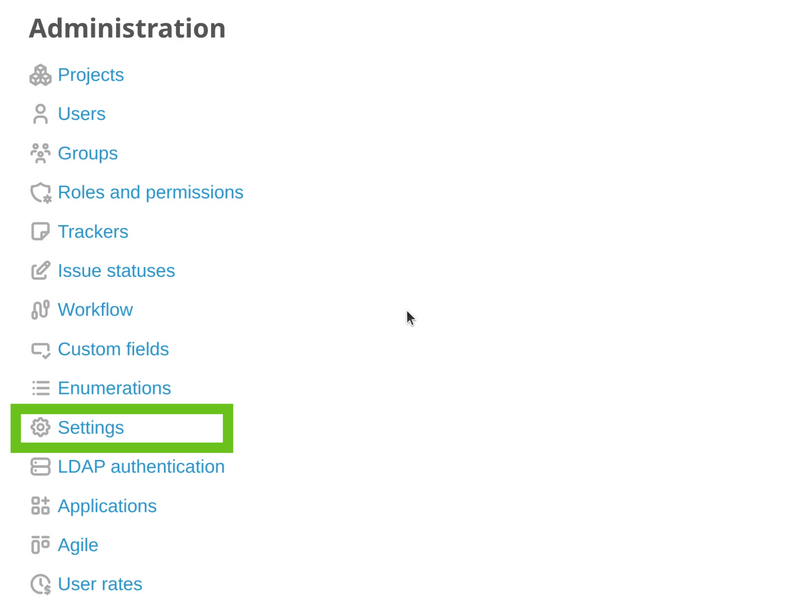
To enable this feature, please go to Administration - Settings.
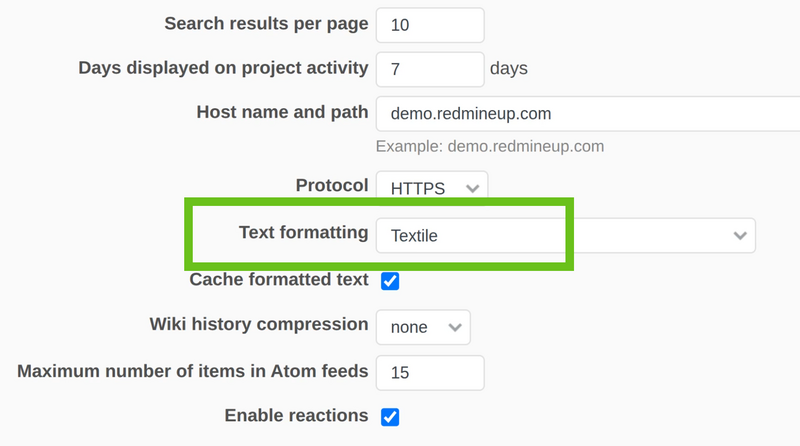
Then in the General tab scroll down to Text formatting field. In the current example we see the standard Redmine Textile.
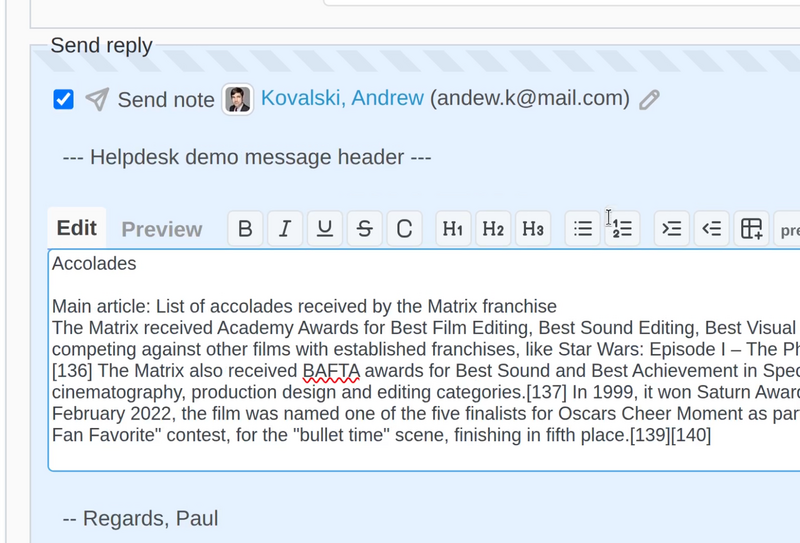
In this situation, if you try to paste some complex text (with formattings), it will just not work. Please see the pictures below.
- Original text

- Pasted text in Redmine afterward (it appears just as simple text with no formattings)
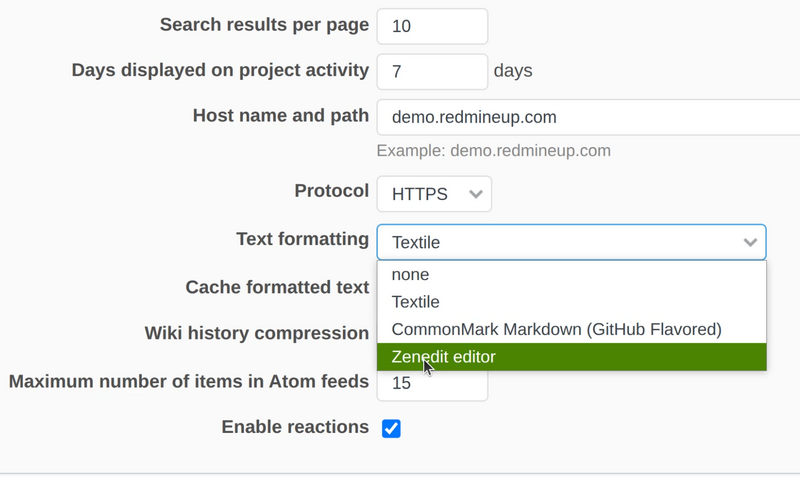
To change this behavior, you have to return back to the setting in the admin panel and change the Text formatting to be Zenedit Editor.
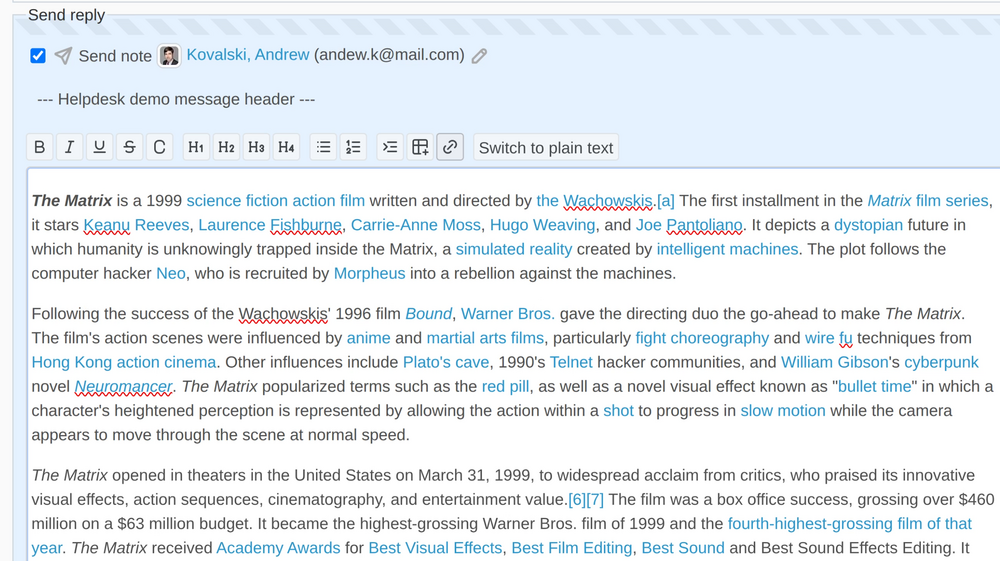
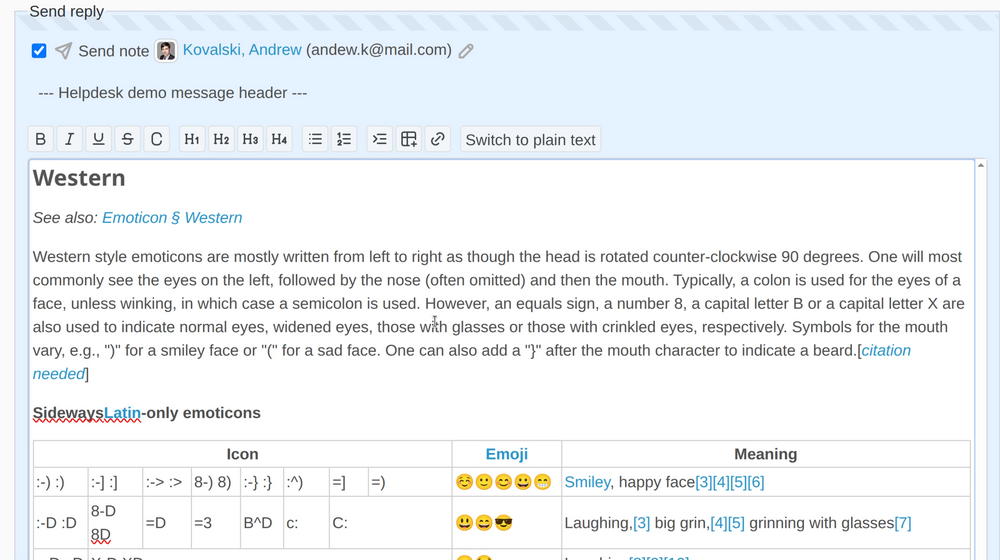
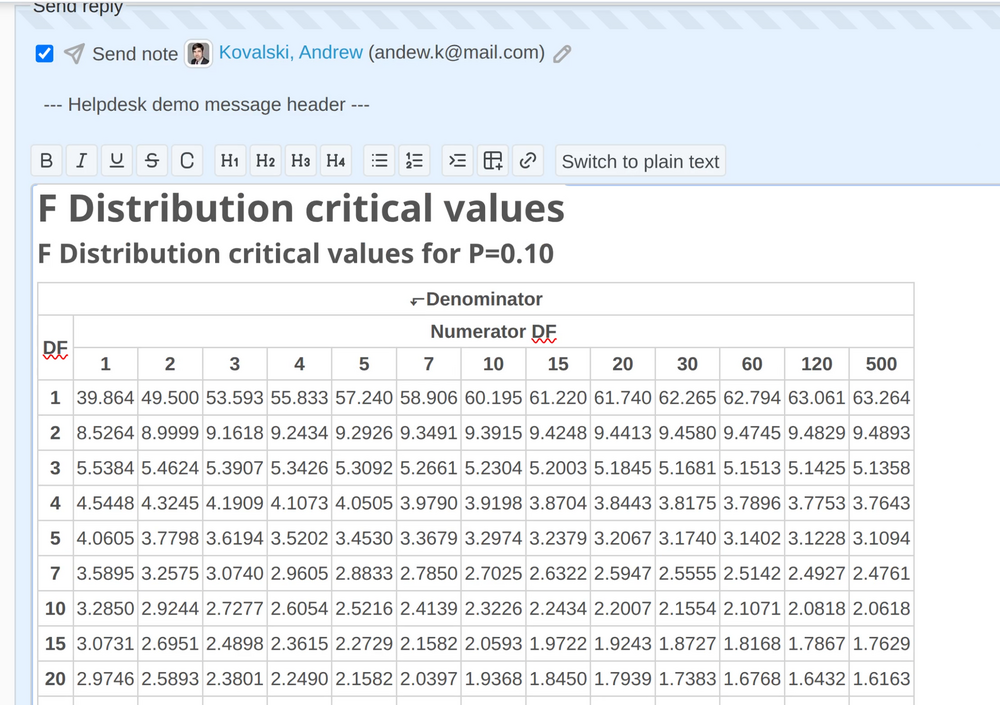
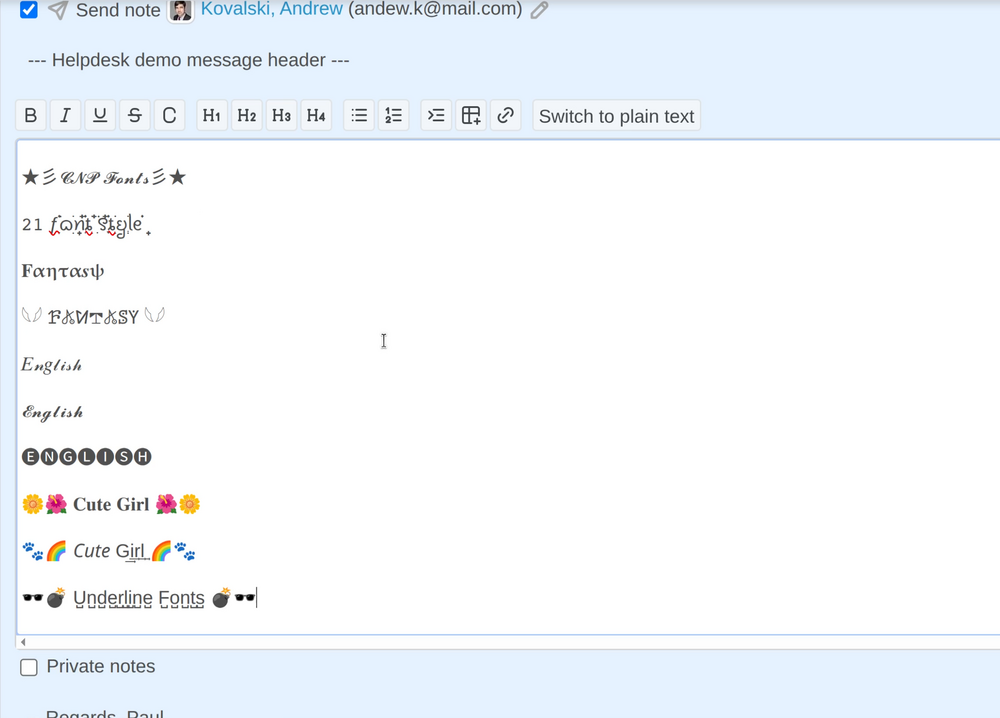
Afterward, please see the the below examples of complex text appearing correctly in Redmine.
- Text taken from wiki article
- Emoji icons
- Tables
- Different kinds of fonts
Video demonstration
To see the big difference between the original Redmine feature and the Zenedit Editor, please check this video demonstration.