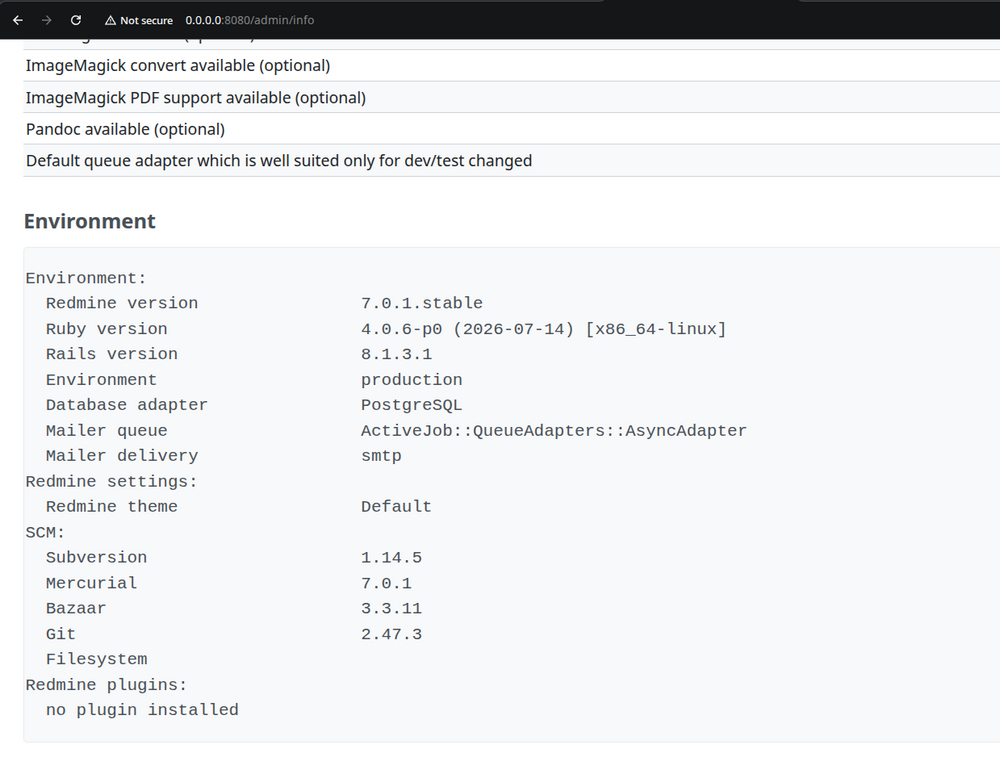
This guide will show you how to install Redmine 7 via the Docker Compose using Ubuntu 26.04. We are going to set up the Docker engine with PostgreSQL database.
- Docker engine installation steps
- Project Directory Creation
- Docker compose configuration
- Starting the Redmine Container
- Accessing Redmine via the web interface
Docker engine installation steps
The following steps are going to add the Docker's official tools and repository.
sudo apt update
sudo apt install -y ca-certificates curl gnupg
Official GPG key of the Docker
sudo install -m 0755 -d /etc/apt/keyrings
sudo curl -fsSL https://download.docker.com/linux/ubuntu/gpg -o /etc/apt/keyrings/docker.asc
sudo chmod a+r /etc/apt/keyrings/docker.asc
Adding the Docker repository to Apt sources
echo \
"deb [arch=$(dpkg --print-architecture) signed-by=/etc/apt/keyrings/docker.asc]
https://download.docker.com/linux/ubuntu \
$(. /etc/os-release && echo "$VERSION_CODENAME") stable" | \
sudo tee /etc/apt/sources.list.d/docker.list > /dev/null
Docker components installation
sudo apt update
sudo apt install -y docker-ce docker-ce-cli containerd.io docker-buildx-plugin
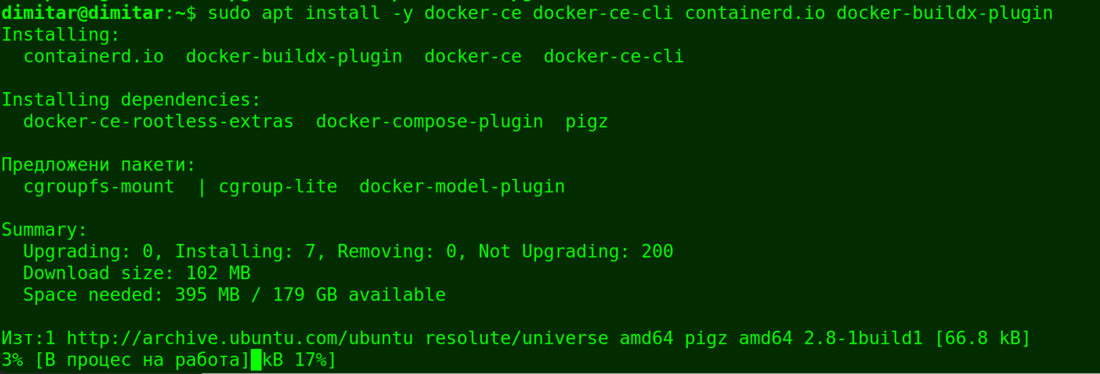
docker-compose-plugin
To enable the docker run without sudo, please do the next
It requires logging out and back in afterward
sudo usermod -aG docker $USER
Project Directory Creation
The following commands will create a folder for your Redmine 7 deployment configs as well as data persistent mounts:
mkdir -p ~/redmine-docker/data
cd ~/redmine-docker
Docker compose configuration
Now we are about to set up Redmine with the database (PostgreSQL).
Please generate a secure secret key via this command:
openssl rand -hex 64
As a result you have a long string of random numbers and letters. This is your secure secret key.
Now you have to create a docker-compose.yml file using the below command:
nano docker-compose.yml
And paste the following config. Please replace YOUR_GENERATED_SECRET_KEY with your secure secret key:
Note: Please keep in mind that this parameter below "image: redmine:latest" is pointing always to the very current latest version of Redmine. So in your case when you follow these steps, you can have different version in comparison with the example below. On the other hand, if you wish to have a specific version installed, you can change the "latest" with the specific version.
services:
  db:
    image: postgres:15-alpine
    restart: always
    environment:
      POSTGRES_DB: redmine
      POSTGRES_USER: redmine
      POSTGRES_PASSWORD: my_secure_db_password
    volumes:
      - pgdata:/var/lib/postgresql/data

  redmine:
    container_name: dimitar_container
    image: redmine:latest
    restart: always
    ports:
      - "8080:3000"
    environment:
      REDMINE_DB_POSTGRES: db
      REDMINE_DB_DATABASE: redmine
      REDMINE_DB_USERNAME: redmine
      REDMINE_DB_PASSWORD: my_secure_db_password
      REDMINE_SECRET_KEY_BASE: "YOUR_GENERATED_SECRET_KEY"
      SECRET_KEY_BASE: "YOUR_GENERATED_SECRET_KEY"
    volumes:
      - ./data:/usr/src/redmine/files
    depends_on:
      - db

volumes:
  pgdata:
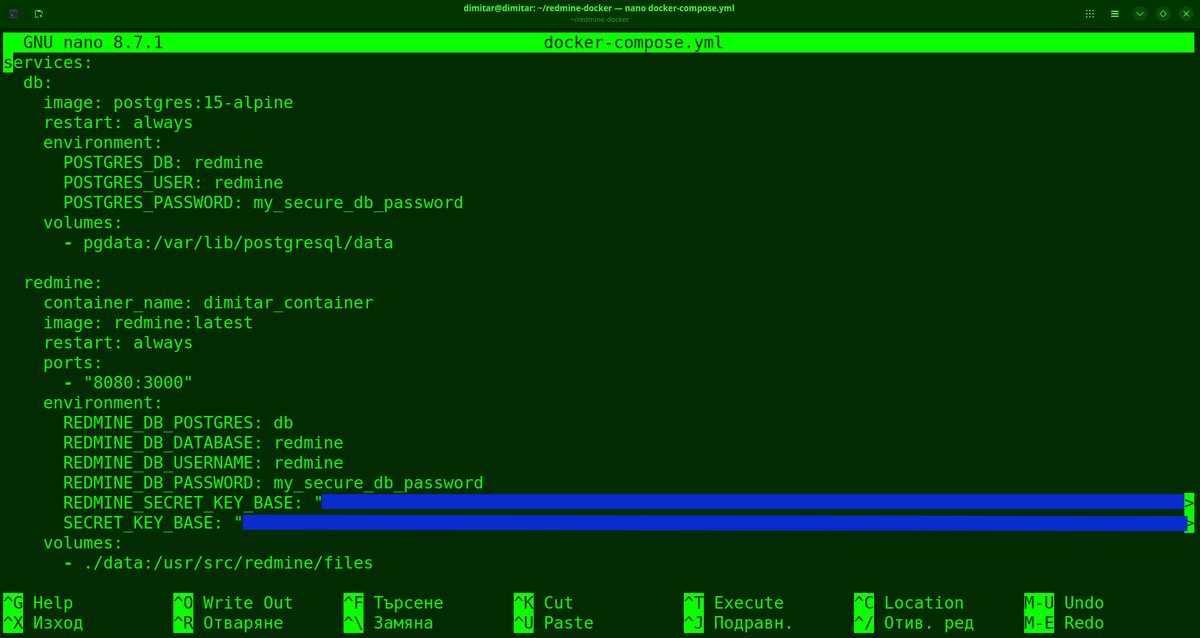
You may check this picture for more detail.
Starting the Redmine Container
You can do it via this command:
docker compose up -d


Accessing Redmine via the web interface
As a result you have up and running Redmine 7 when you open your browser and go to http://0.0.0.0:8080. You got default username and password "admin" by default. You have to change them for security reasons in the Redmine settings.