- Open the CMS settings
- Create a Layout
- Create a Page
- Make it the Site home
- Add a Snippet and a menu
- Set up the rest later
- Related articles
This article takes you from a freshly installed plugin to a Site with one Layout, one Page and a Site home. You need the plugin installed (see the installation articles in this documentation) and a Redmine administrator account. Nothing here changes your Redmine projects: a Page is visible to visitors only when it is Active.
Open the CMS settings
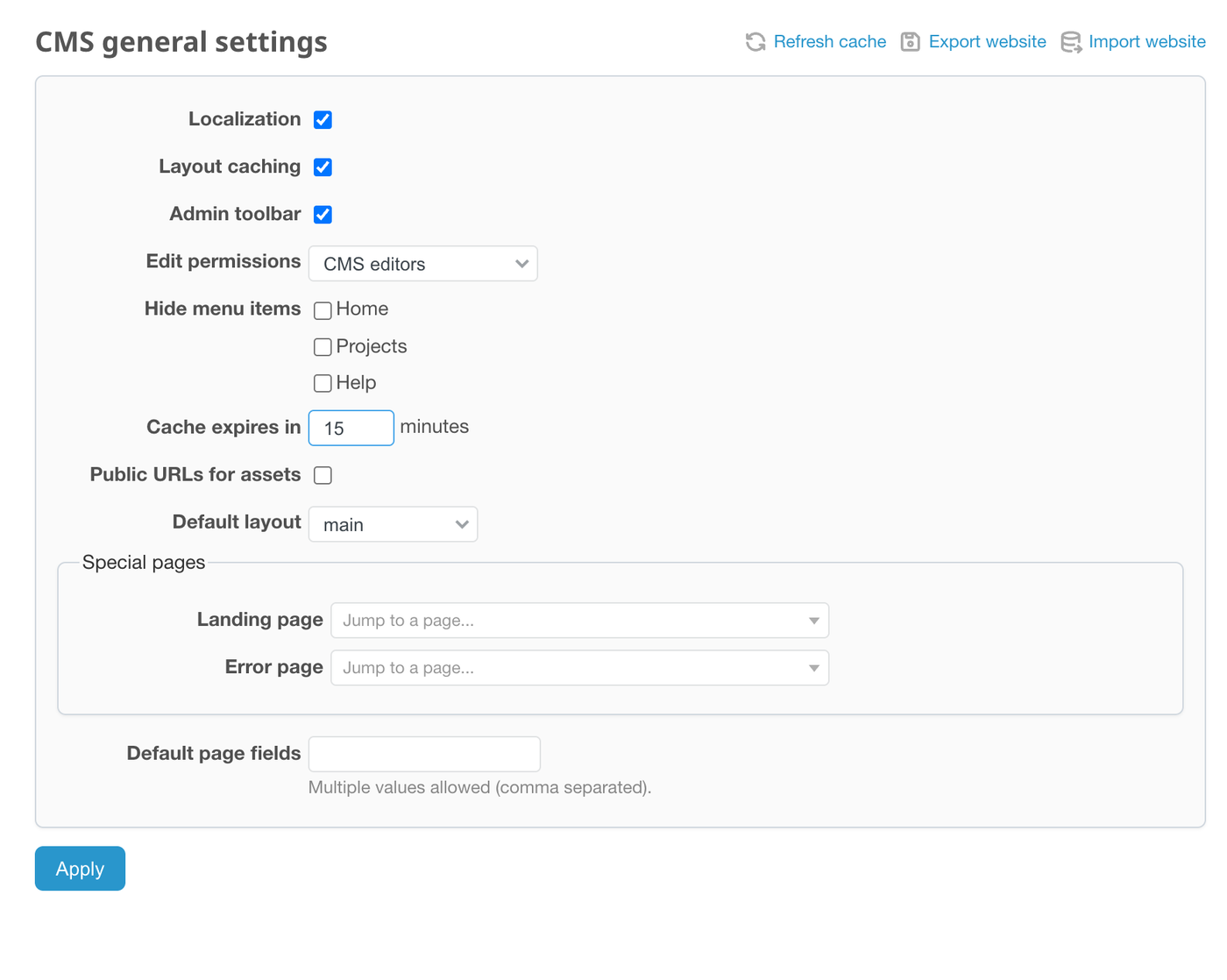
Open Administration, then CMS. The CMS general settings screen opens, and its sidebar links to Pages, Snippets, Menus, Layouts, Action layouts, Redmine hooks, Routes, Assets and Global variables. You will come back to the settings in the last step.
Create a Layout
A Layout is the frame that wraps every Page that uses it.
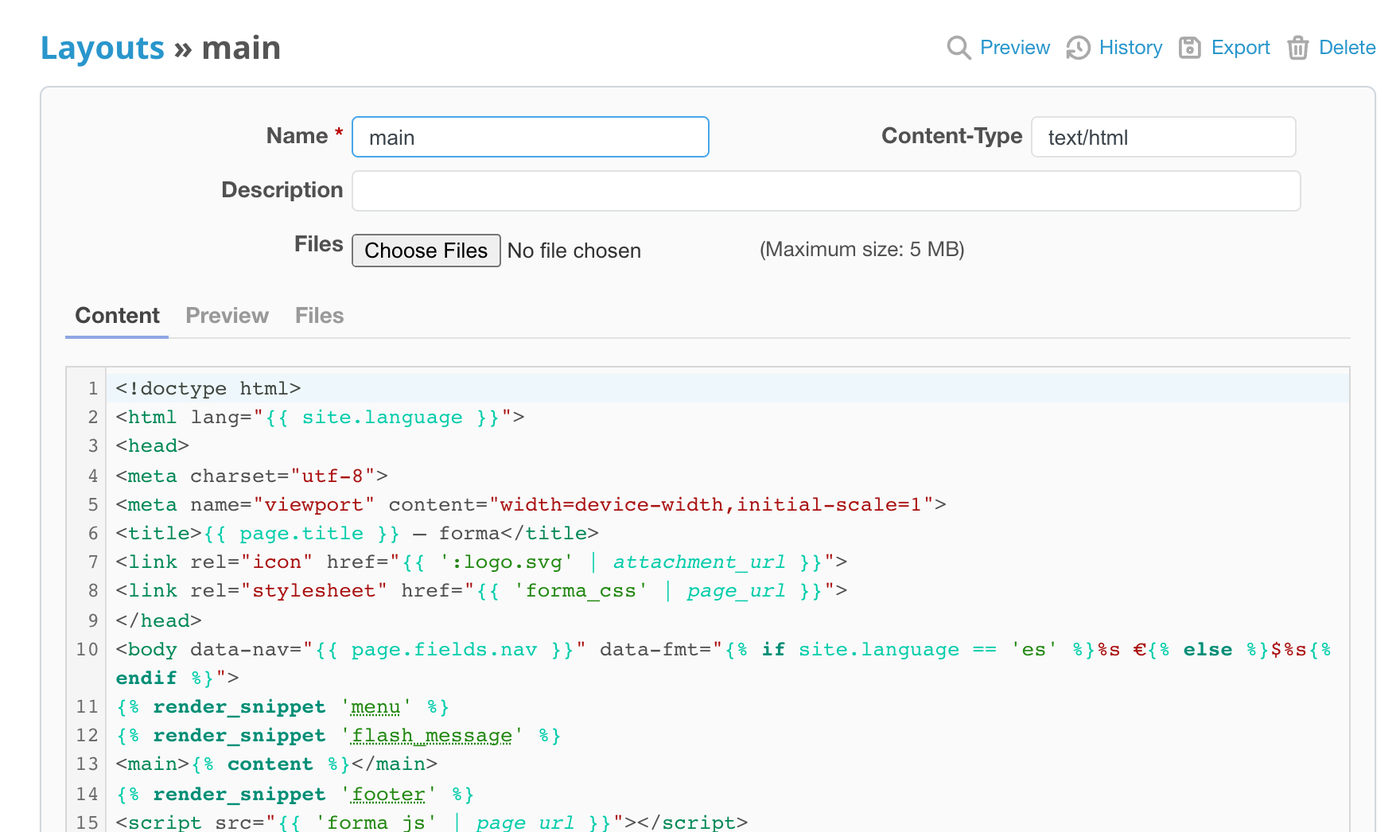
- Open Layouts and click New layout.
- Enter the name
main. Names use lowercase letters, digits,-and_. - Leave the content type empty (the default is
text/html) and paste the text below into the content. - Click Create.
<!doctype html>
<html lang="en">
<head>
<meta charset="utf-8">
<title>{{ page.title }}</title>
</head>
<body>
<main>{% content %}</main>
</body>
</html>
The tag content prints the body of the Page. A Layout without it shows no Page text at all. This is the Layout of the sample site: the same structure with a menu, a footer and styles.
Create a Page
- Open Pages and click New page.
- Fill the Name (
home), the Slug (home) and the Title (Home). The name is unique on the whole Site, the slug only inside one parent. - Choose the Layout
main, set Status to Active and leave Visibility on Public. - Choose the Filter: leave it empty to write plain HTML, or choose Textile or Markdown to write in that markup. A filter is applied after Liquid.
- Write the text and click Create.
A new Page is Locked by default and only editors can see a locked Page. Set it to Active when you want the public to see it. Click Preview in the form to see the Page before you save, see Preview unsaved content.
Make it the Site home
- Return to CMS general settings. The Special pages block appears as soon as at least one Page exists.
- Choose your Page as Landing page. Choose the Layout
mainas the Default layout so that new Pages start with it. - Click Apply.
Click Show site to open the Site. The Landing page is served at /, and every other Page at /pages/ followed by its path, for example /pages/about. Without a Landing page, / shows the stock Redmine home page.
Add a Snippet and a menu
A menu or a footer is used on every page, so it belongs in a Snippet.
- Open Snippets, click New snippet, name it
menuand paste your links. - In the Layout
mainadd the line below above the tagcontent, and save.
{% render_snippet 'menu' %}
Every Page that uses the Layout now shows the menu, and a change to the Snippet appears on all of them. To add items to the Redmine top menu instead, use Menus.
Set up the rest later
- Error page: choose a Page in the Special pages block to replace the Redmine error screens.
- Cache: tick Is cached on a public Page and set Cache expires in. See Recommendations for a site structure.
- Edit permissions: administrators can always edit. Choose a group there to let other people edit the Site.
- Routes: serve a Page at a fixed path such as
/robots.txt.