There are two levels of the workday length feature - global and user level.
Global level
To make the configuration, please go to Administration (on top) - People.
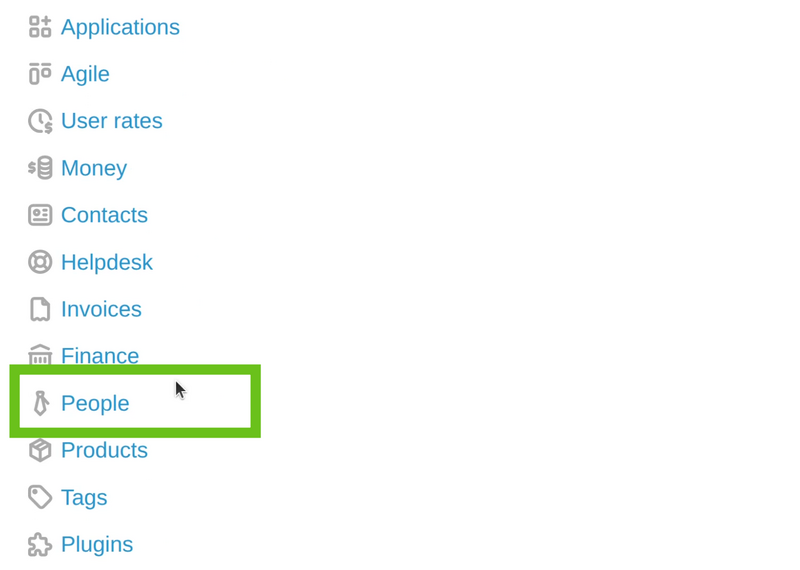
Then in the General tab scroll down to the Workday length and set the needed number of hours.
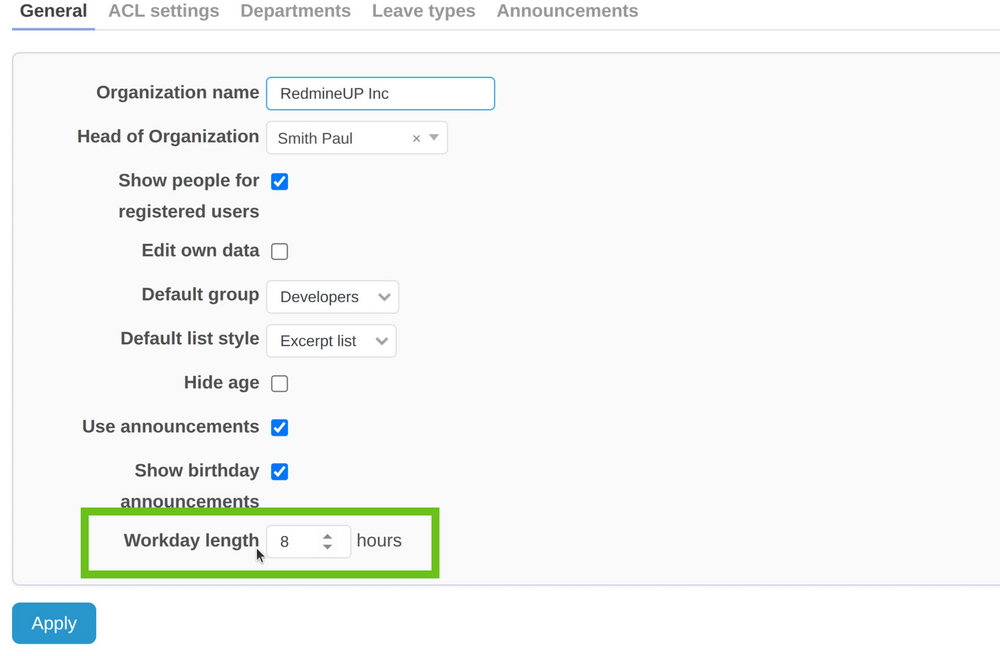
Note: Please keep in mind that this is a global configuration, i.e. it is applied over all People in Redmine.
User level
In this case, you have to click on the user name on the top right corner.
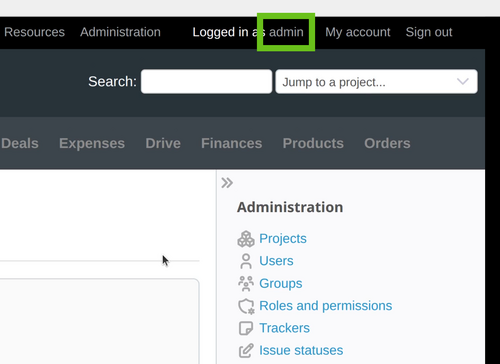
When the user page is opened you have to now click on the Edit button.
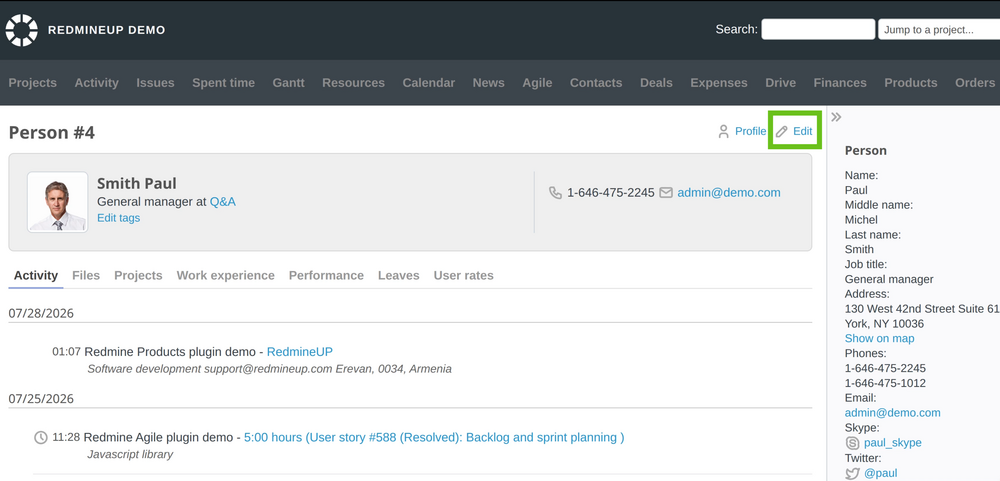
Afterward, you are able to set the user level workday length.
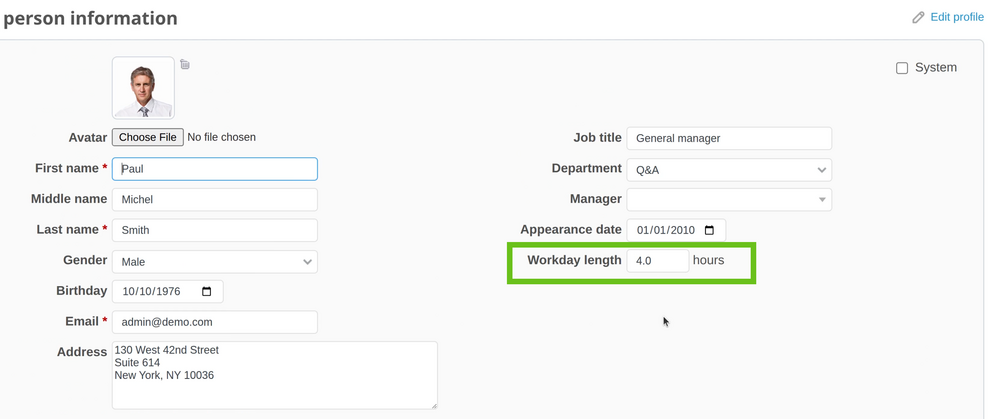
Note: The user workday length value overrides the global configuration.
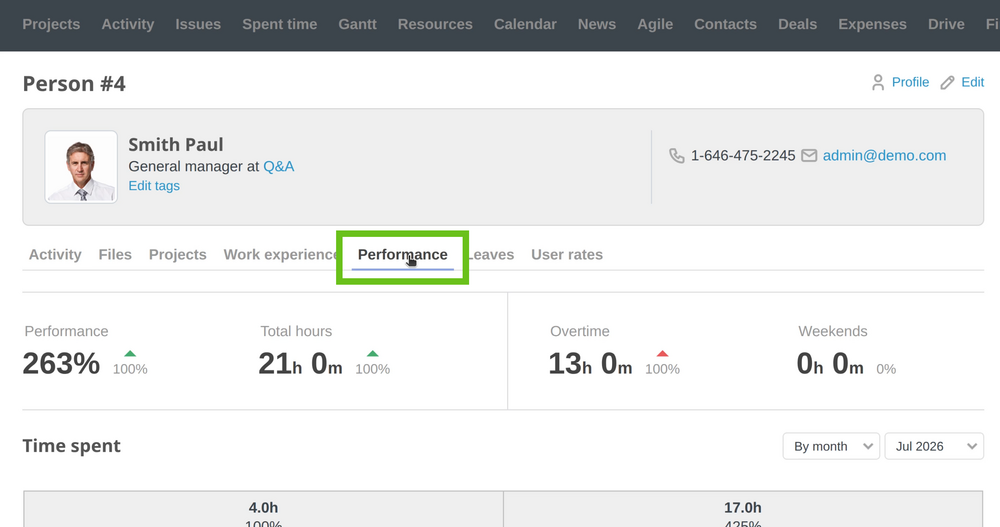
In our example the guy has 4 hours per day to work (which overrides the global 8 hour setting). In the example below you could see that on the 1-st of July he has 4 hours work time that is making his day 100% done (as this is his workday length). But the next day he has 17 hours, so he got a lot of overtime (425% done work based on his 4-hour workday length).
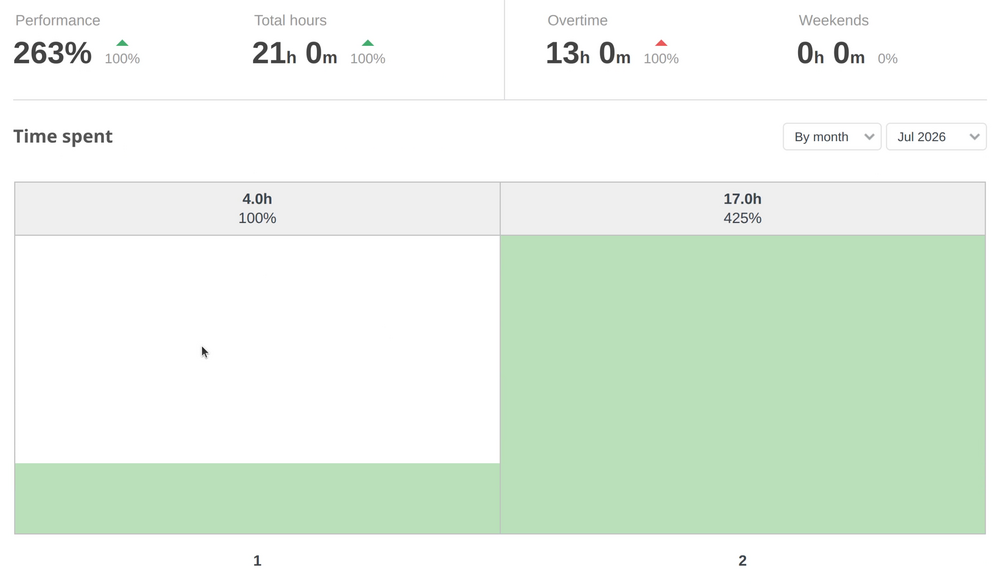
The above table could be found in the Performance tab of the user page.