- What a baseline contains
- Save a baseline
- Show a baseline
- Read the chart
- Variance
- Rename, edit and delete
- Good practice
- Related articles
PRO A baseline is a saved copy of the plan. When the plan changes, the baseline stays, so you can see how far reality has moved from what was agreed.
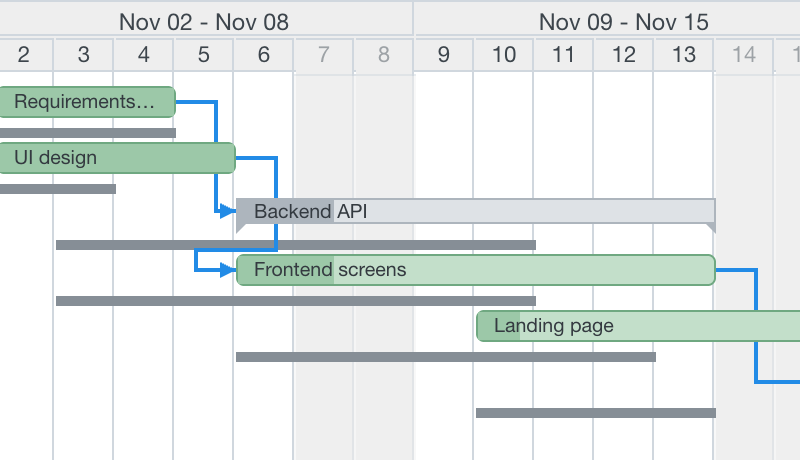
What a baseline contains
- The start and due dates of every issue of the project and its subprojects that has at least one date, as shown on the chart at the moment of saving: Redmine dates with your Draft applied, and parents with calculated dates rebuilt from their subtasks.
- Chart filters do not limit it: the whole project is saved.
- No dependencies, estimates or assignees: only dates.
- A baseline is immutable. The name and the description can be changed later, the dates never. The Draft and Apply never change it.
A project can have several baselines. Saving a new one does not replace the older ones. Baselines exist only on the project page of the project that owns them; the global page does not show them.
Save a baseline
You need Edit planner draft.
- Open the Planner tab of the project.
- Select Save as baseline in the buttons row above the chart.
- Enter a name (by default the date) and, if you like, a description. The dialog says how many Draft changes of dates it includes.
- Select Save. The new baseline is shown right away.
Draft changes of dates are included. If you want to save the plan that Redmine holds now, discard or apply the Draft first.
Show a baseline
- Baselines are listed in the sidebar in the section Baselines, newest first; the title of a link shows the creation time and description. Select one to show it. The shown one is selected and has a clear link that hides it.
- Or in Options select Baseline: it shows the selected baseline, or the newest one.
Your choice is remembered per project and user. A deleted baseline is no longer shown.
Read the chart
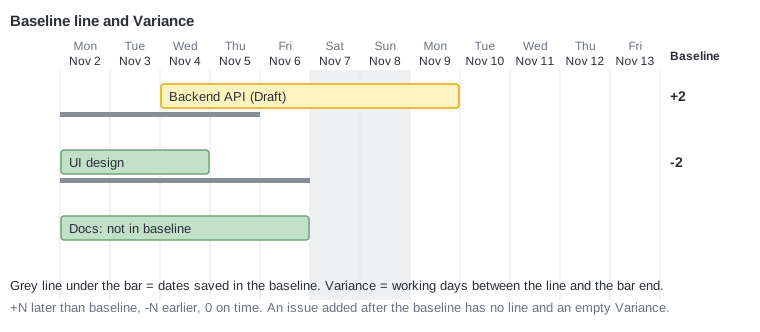
- A grey line under a bar shows the dates in the baseline. The line is clipped at the edge of the range, without chevrons, and is half transparent for closed issues.
- If the issue has a Draft change, the thin line of its current Redmine dates sits between the bar and the baseline line.
- The tooltip adds Baseline start and Baseline due with the variance, or "Not in baseline" for an issue that was added later or had no dates then.
- The Baseline column at the end of the task table shows the variance of the due date.
Variance
Variance is the number of working days between the baseline date and the date on the chart: the Draft value if there is one, otherwise the issue value.
| Variance | Meaning |
|---|---|
+2 |
Two working days later than the baseline |
-2 |
Two working days earlier |
0 |
On the baseline date |
| empty | The issue is not in the baseline, or a date is missing |
The weekend is not counted: a due date moved from Thursday to the next Monday is +2 (Friday and Monday), see Working days. Summary bars use their effective dates.
Rename, edit and delete
For Edit planner draft users on the project page, while a baseline is shown, the buttons row has Edit baseline (name and description) and Delete baseline. Deleting is permanent and asks you to confirm.
Good practice
- Save the first baseline when the plan is agreed and before work starts.
- Save a new one after every formal re-planning, and give it a name such as "Release 2.0 re-plan, November".
- Read the variance together with the critical path: a large positive variance on a critical issue means a late end.