- What can be edited where
- Move and resize a bar
- Schedule an issue without dates
- Edit dialog
- Undo and Redo
- Related articles
You need the Edit planner draft permission in the project of the issue. Every gesture below goes to the Draft immediately, one request per finished gesture. Nothing is written to the issue until you apply the changes.
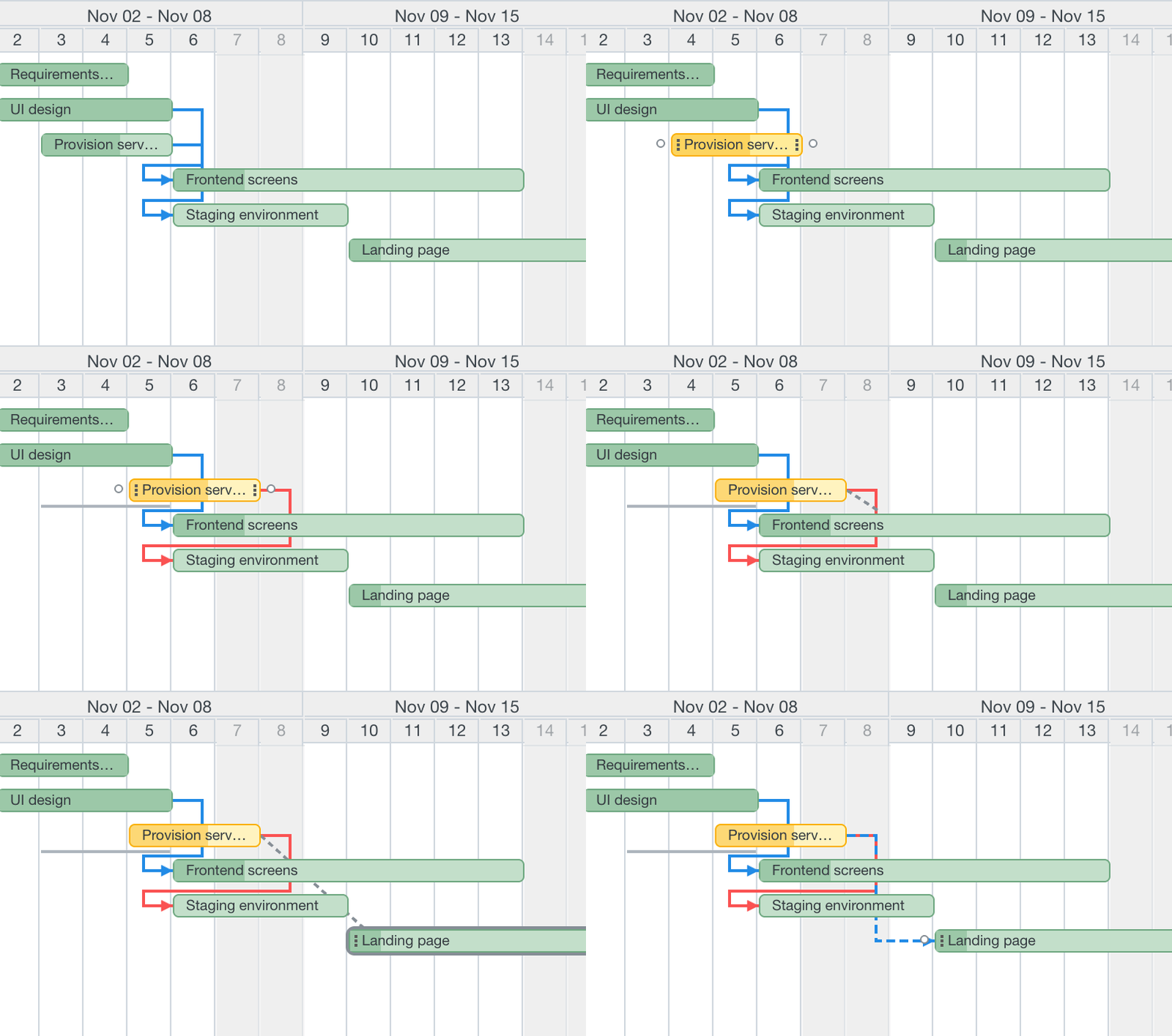
What can be edited where
| Field | Drag the bar | Resize | Empty row | Dialog |
|---|---|---|---|---|
| Start date | both dates move | left edge | yes | yes |
| Due date | both dates move | right edge | yes | yes |
| Estimated time | yes | |||
| Assignee | yes |
Parents whose dates are calculated from subtasks show Summary bars and cannot be edited: change the dates of their children. A parent with its own dates (Parent tasks attributes set to Independent of subtasks) is an ordinary bar.
Move and resize a bar
To move an issue:
- Drag its bar left or right.
- Release. The bar turns yellow and the old dates remain as a thin grey line below it.
To change one date, drag the left or right edge of the bar. The distance is counted in columns of the current scale: a day, a week (seven days) or a month. Use the Days scale for exact dates. Dragging also updates the Summary bars of the parents at once.
An issue with only one date is resized relative to that date; the missing date appears in the Draft.
Schedule an issue without dates
- Hover the empty row of the issue. A grey rectangle follows the cursor by column.
- Click to schedule one column, or drag its right edge to schedule a range. The tooltip shows the dates while you drag.
Edit dialog
- Click a bar. The dialog has start date, due date, estimated time and assignee (people who can be assigned in the project).
- Change the fields and select Save. Under every changed field a line shows what Redmine holds now.
To throw away the Draft of one issue select Discard changes in the dialog; it appears only when the issue has a Draft change. A change of assignee reloads the page because the row may move to another group.
Undo and Redo
Undo and Redo are in the buttons row above the chart. Keyboard: Ctrl+Z and Ctrl+Shift+Z (Cmd on macOS), ignored inside input fields.
- Each action keeps the request that repeats it and the request that reverses it, so Undo is just another Draft change.
- A new action clears the Redo list.
- The history lives in your browser: after a page reload (and after an assignee change) it is empty. The Draft itself stays.
- Undo is not a shared history. If a colleague changed the same issue in between, the reverse request overwrites their change (the last write wins).