
In the Agile view, you can customize the board - using Filters or Options. The Filters are a default Redmine feature. Let’s see what Options offer:
Board Columns
Board Columns are the same as your issue status which can be modified by going to Administration → Issue statuses.
To change a status name, click on its current name. It will open a new window with an input. Write a new name and click Save. Please note that this change will apply to all projects, as this is a global setting.
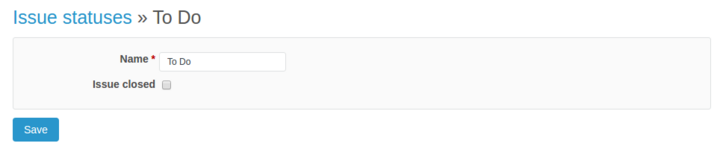
By default issues with the status Closed will not be shown on the board. It can be changed in Options -> Board columns. If any of your statuses will have "issue closed" checked, issues belonging to this status will be grey in color on the board. Additionally, you can show only IDs of closed issues. To set it, go to Administration -> Agile and check the Hide closed issue data option.
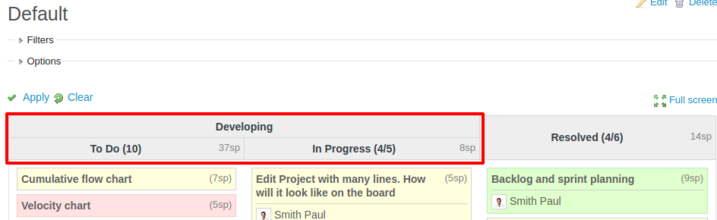
You can also add a prefix followed by a colon to two or more issue status names and it will create a subcolumn. A maximum of five subcolumns is permitted.

Each status can be reordered or deleted. You can also create a new status.
If you create a new status, you have to set up a workflow for it; otherwise, you will not be able to move issues to/from that status(column). It can be set in the Administration menu (on top) -> Workflow section.
After you click Save, changes will be visible on the Agile board.
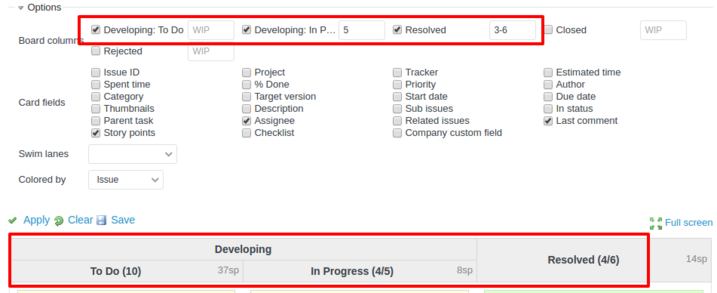
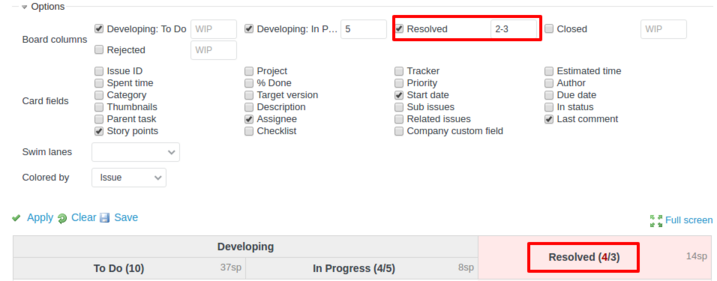
From the board view, you can choose which columns are visible on the board by checking the desired ones. By providing a number, you can limit the number of issues for each column. When a range is provided, the column will show the maximum number of issues possible and availability.
When you set a limit of issues for a column, and by moving an issue this limit is exceeded, you will receive a warning. This feature helps you follow a process and shows whether or not there are too many tasks in progress or the team is too small.
Collapse columns
Fold a column into a narrow strip when you do not need it right now, for example Resolved or a long Feedback queue, and give the working columns more room. It works on Scrum and Kanban boards.
- Hover over the column header and click the arrow at its left side. The column collapses to a thin strip and the other columns get its space.
- To bring the column back, click the arrow on the strip again.
Cards can be dropped on a collapsed column. Drag a card over the strip, it highlights, and the card moves to that status as if the column were open.
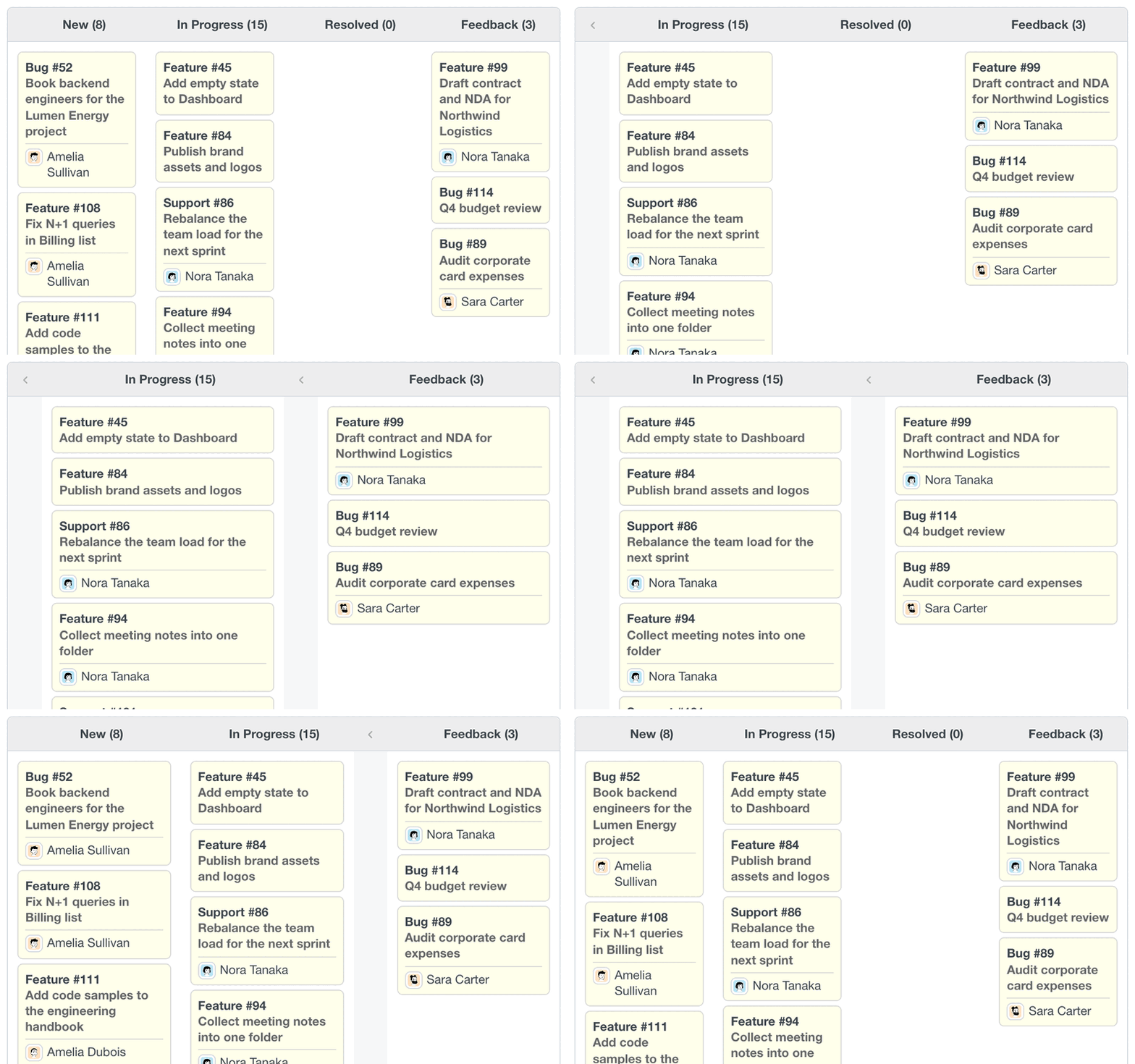
The collapsed state is remembered in your browser for each board page. It is not shared with other users and does not change the board settings, so a column that is open for a colleague stays open for them.
Card fields
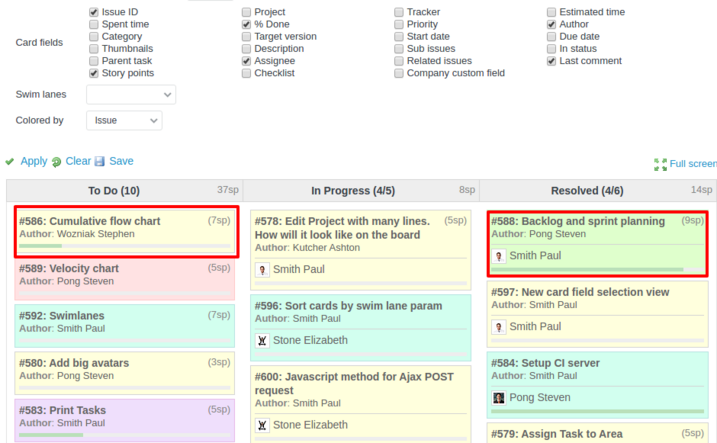
Choose what information you want to have on your board for each issue. For example, Thumbnail will show the first image attached to the issue. The Checklist will show a list of to-dos. It can be created in the Edit issue mode.
Swimlanes
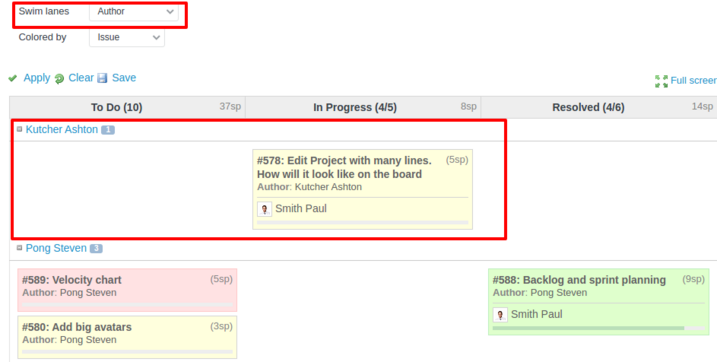
Swim-lanes allow you to group cards, e.g., by author
Colored by
Here you are able to change the color of a board depending on what elements you would like to highlight.