
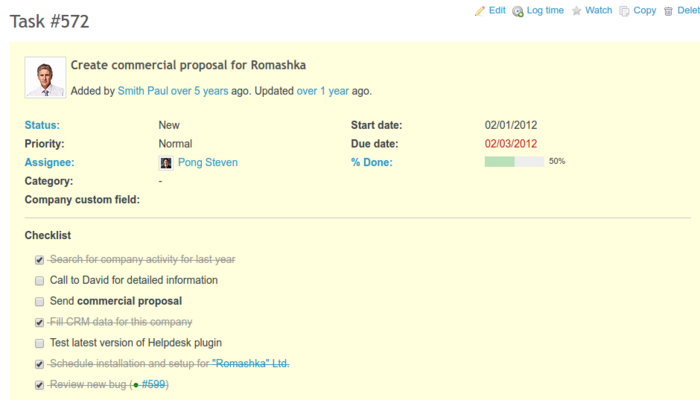
Checklists are added to issues. In order to use the checklist: go to the issue view, click edit and you should see a field called Checklist. Just start typing the first item of it, or click on Add from template to use one of your existing templates. Read more about using templates here .
Checklists permissions: in order to be able to view checklist or edit new items, go to Administration -> Roles and permissions -> Issue tracking and check the following fields for a role you want to grant permissions to:
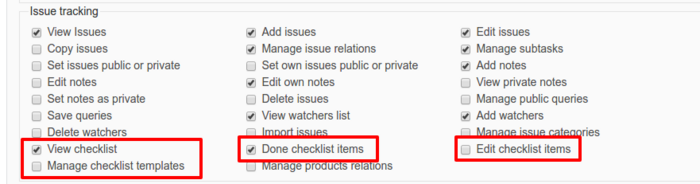
Done checklist - mark checklist items as done/undone.
Adding new items
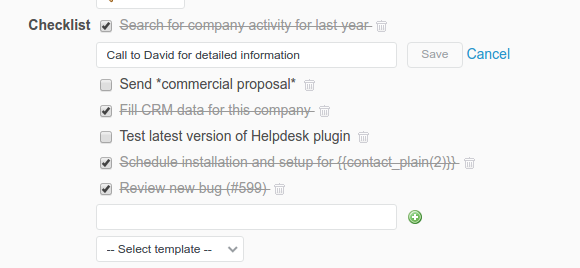
In order to modify your checklist, go to an Issue with the aforementioned checklist, and start typing in the input – when you’re finished, just press enter key. The new field will appear. You can also click on the green icon on the right – it adds a new item as well.
Editing checklist's item
If you want to edit your item, just click on it – it will become an editable field. Start typing and finish with pressing enter.
Deleting
Deleting the item is very easy – just click on the “bin” icon.
Sorting the items
In order to reorder items within a checklist drag and drop chosen items.
If you use the Agile plugin, you can edit or mark as done checklist items also from the Agile board. In the board Options -> Card Field check Checklist - if an issue contains a checklist, it will be visible then on the board.