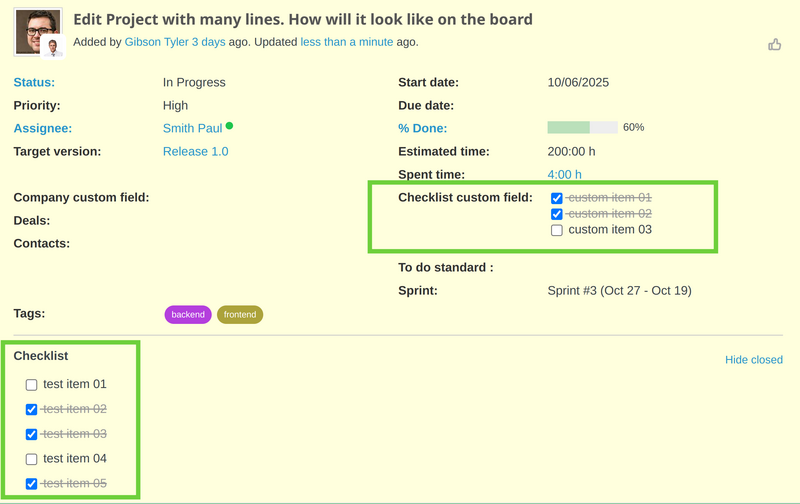
From Checklists 4.0.0, a new feature was added - Checklist format for custom fields. It means that the Checklists are now more flexible.
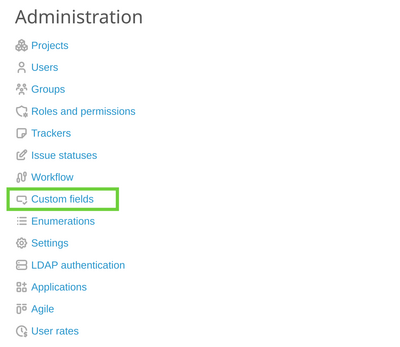
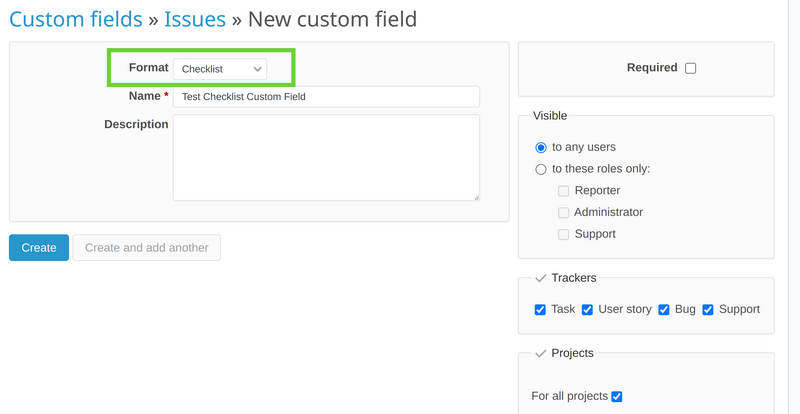
To make it available, please go to Administration and select Custom fields.
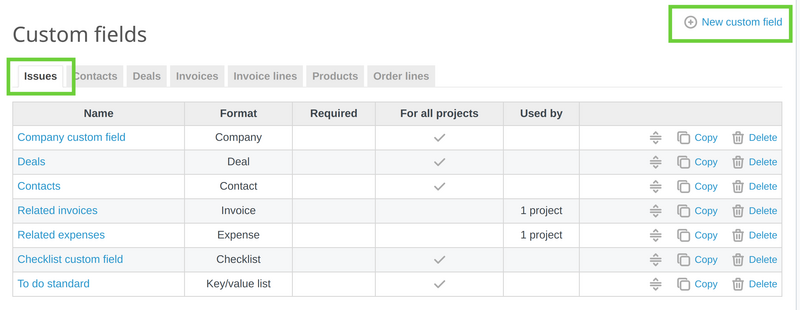
Then on the Issues tab, please click on New custom field.
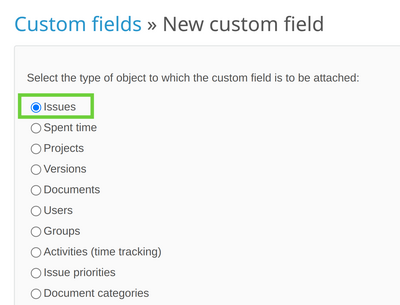
Here on type of custom field make sure to be Issues (it is selected by default as it is first in the list of options).
Now this is the key moment - please select Checklists as a format from the drop-down menu. For the other fields it is up to you how to set them but make sure to select at least one tracker and at least one project.
It is ready. When you open an existing or create a new issue, you will have a new option for Checklist custom field (in addition to the original Checklist option).
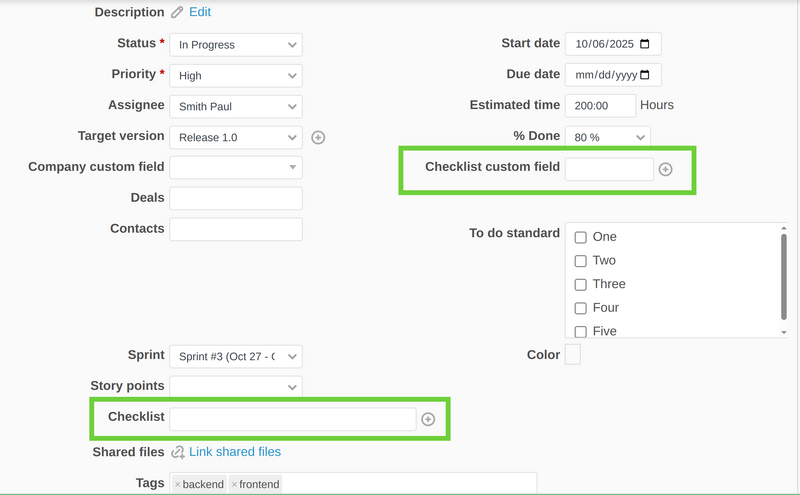
Note: So, you can have unlimited number of checklists in one issue (ticket) with adding new custom fields with format "Checklists".
And one view below of the saved checklists (both original field and custom field).