Every edit screen of a Page, Part, Layout and Snippet has the tabs Content and Files above the editor, so a long list of files no longer pushes the form down. On a Part the tab is called Page files, because a Part uses the files of its Page. The Assets page of the CMS menu (files of the whole Site) uses the same list.
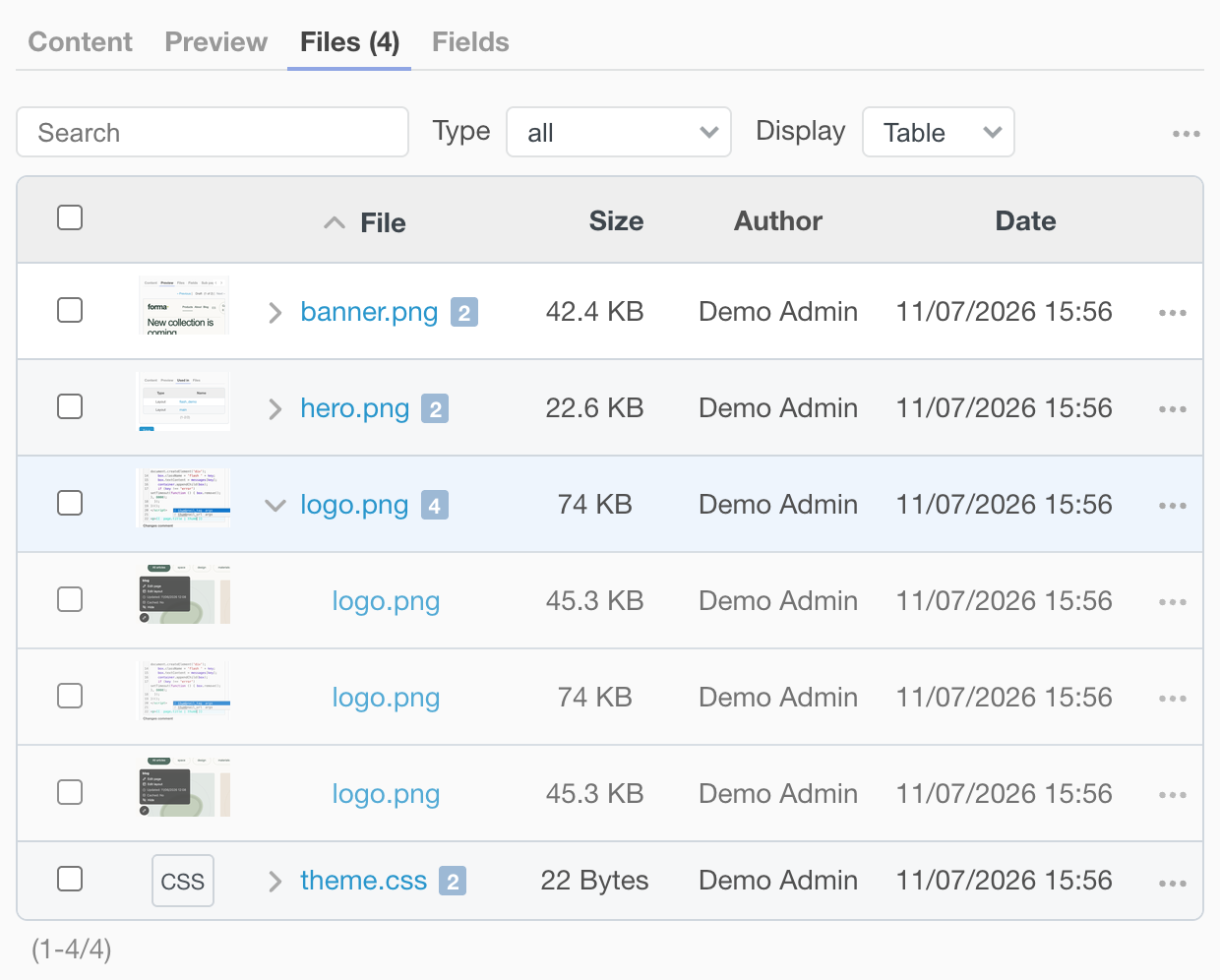
Find and view files
- Search by name, filter by type and sort by name, date or size.
- Switch between a table and cards with image thumbnails.
- Click a name or a thumbnail to open the file in a large preview.
- Select several files like issues (click, Ctrl/Cmd-click, Shift-click) and delete them in one action.
File versions
Files with the same name on one object are versions of one file. The list shows one row per name, the newest version is current and the one Liquid uses; click the arrow before the name to see the older versions. In the "..." menu of the toolbar, Delete all previous versions cleans them up.
Actions of the context menu
Right-click a file or click the "..." button of its row:
- Insert into text puts the Liquid tag at the cursor of the editor (Page and Part screens).
- Copy Liquid copies a ready tag:
thumbnail_tagfor images,image_tagfor SVG,attachment_urlfor other files. Page files carry the page name, so the tag works in any Page, Part or Layout. - Copy link copies the download link of that version.
- Copy permanent link copies a link that always gives the current version (Page files and Site assets).
- Download, Upload new version (keeps the file name, whatever the local file is called) and Delete.
Permanent file link
A permanent link looks like /cms/assets/latest/page_name/file.pdf. It redirects to the current version of the file, so you can send it once and replace the file later. A new version appears after the cache time of the Site at most; Refresh cache does not shorten it. Pages that are not visible to the visitor answer 404.