Every change of the content of a Page, Part, Layout or Snippet is saved as a content version. You need to be an administrator or a user in the CMS edit group to see the history.
Add a comment
Write what you changed in the Changes comment field when you save a Page, Part, Layout or Snippet. It appears in the history. A change of line endings only does not create a version.
Page history
Open History on the edit screen of a Page. The list is newest first and has pages like the repository revisions. Besides content versions it shows changes of the Page attributes (name, slug, title, status, visibility, Layout, parent, Filter, caching, date, tags) and Page fields. When one save changes the content and attributes, it is one entry. The comment column reads Attributes changed, Fields changed or Attributes and fields changed if no version comment was written.
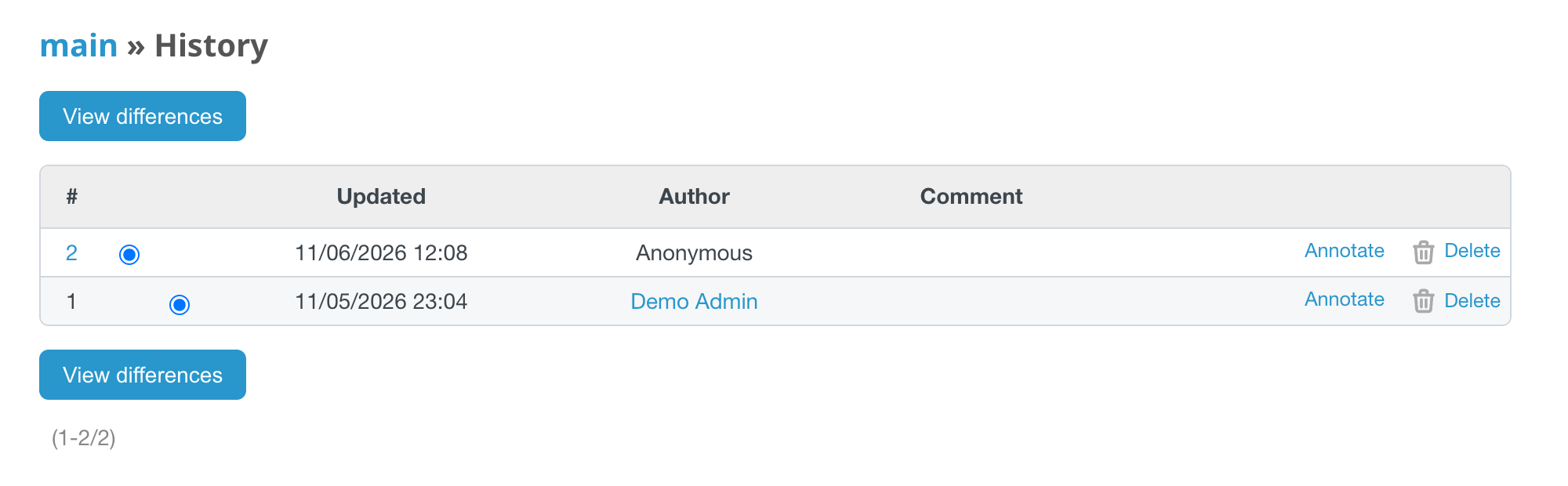
Compare versions
- Select two entries with the radio buttons.
- Click View differences. The button is above and below the list.
- Choose inline or side by side; the choice is remembered for you.
Above the content diff you see one list of the attribute and field changes between the two entries. If only line endings differ the screen says so; if nothing differs it shows No changes.
Annotate and roll back
Annotate marks every line with the version and author that introduced it. There is no rollback button: open an older version in the editor (the Annotate page links to it), check it with Preview and save it. This writes a new version. You can delete an old version, but never the current one.
Two editors saving the same Page at once are detected: the second one sees a conflict screen with the versions saved in between.