You can see a Page, Part, Layout or Snippet as it will look before you save it. Preview works on the edit screen and never saves anything: no new content version is written and the Site does not change.
You need to be an administrator or a user in the CMS edit group.
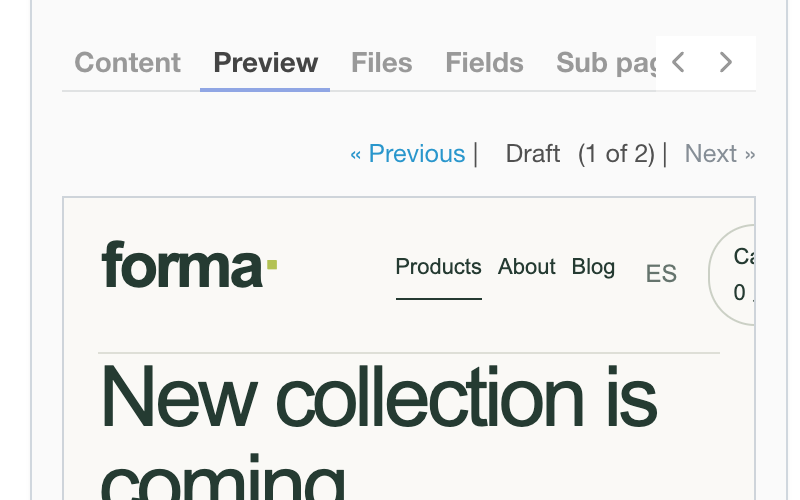
Open the preview
- Open the edit screen of a Page, Part, Layout or Snippet and change the text.
- Click Preview next to Show site, or press Ctrl+Enter in the form.
- Read the result in the full-screen overlay. Click the cross or press Escape to return to the form with your changes intact.
If nothing is changed, the preview shows the saved text. When a text area differs from the saved value, the title reads Preview (unsaved changes). The preview refreshes only when you open it again, so half-typed Liquid is not rendered on every key.
The Preview tab next to Content shows the same result inline each time you open the tab.
Choose a Layout
A Snippet or Part is shown inside a Layout, so you see it with the styles of the Site. Choose a Layout in the bar at the top of the overlay (or in the Preview tab), or choose No layout to see the bare text. A Part uses the Layout of its Page by default. The Layout you chose last time is remembered in your browser.
Compare with older versions
The version pager steps from Draft through the stored content versions, newest first. Use it to compare your text with an older one before you save. See History and comparing versions.
Errors and warnings
A Liquid syntax error is shown with its line number in a yellow box above the preview. The same checks as in Warnings on saving are added to the box, up to five.
New file uploads that are not saved yet are not visible in the preview. A draft Snippet or Part is visible only in its own preview, not inside other Pages.