- Check the latest version
- Delete the old version
- Copy the zip file of the new version
- Unzip the file
- Delete the zip file
- Install the needed gems
- Migration
- Restart Redmine
- Video demonstration
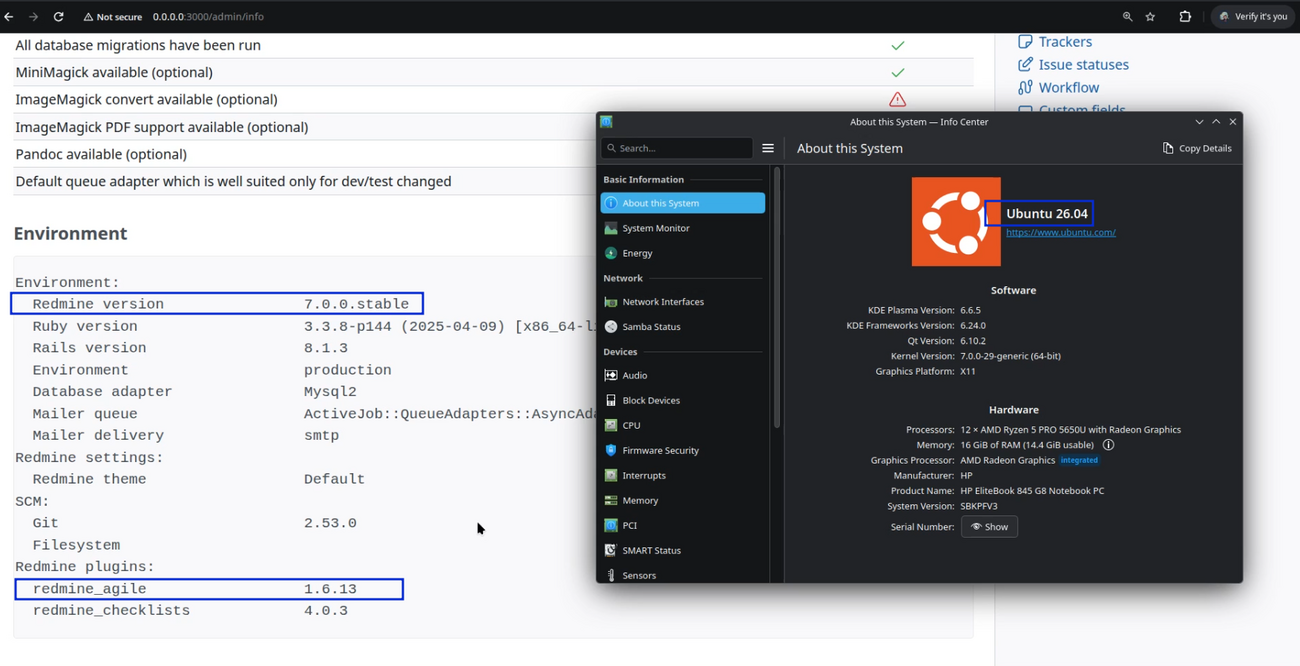
This tutorial will show you in detail how to upgrade the Agile plugin from older to a newer version on Redmine 7 that runs on Ubuntu Linux 26.04.
Note: Please keep in mind that the below steps are absolutely the same if you:
- update older light to a newer light version
- upgrade from light to PRO version
- update older PRO to a newer PRO version
Check the latest version
There are 3 ways of checking if there is a newer version of the plugin.
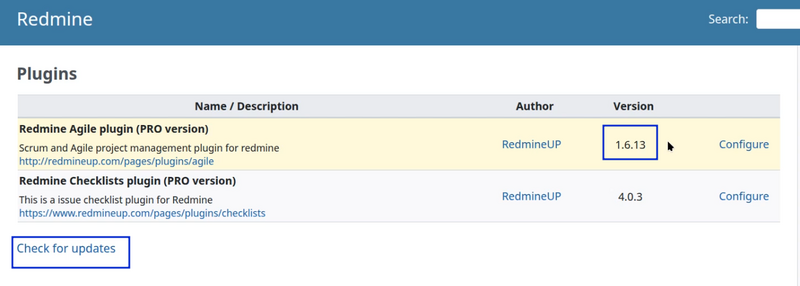
The first one is to go to Administration - Plugins - Check for updates. When you click on the Check for updates button, you will got an exclamation mark near the plugin version if it is old version and green sign if you have already installed the very latest one.
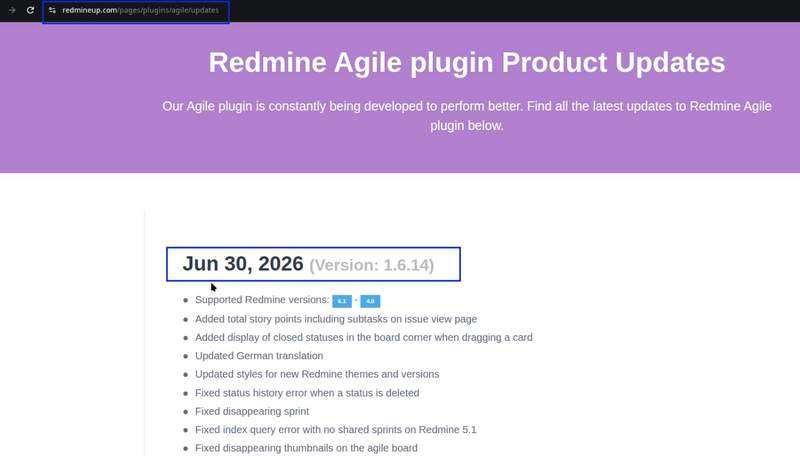
The second way is to check the changelog of our site.
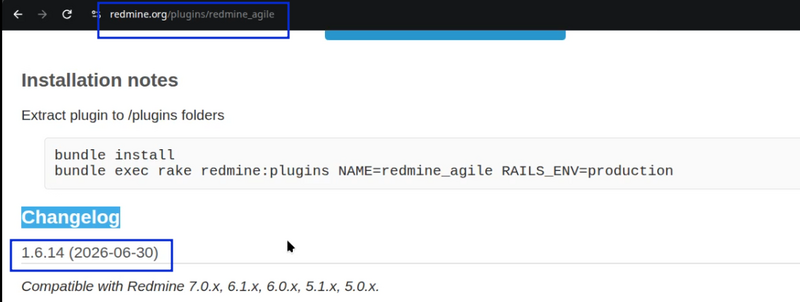
And the third way is to see the changelog of the official Redmine community site.
Delete the old version
The very first thing that you need to do is to delete the old plugin folder into your Redmine directory plugins' folder.
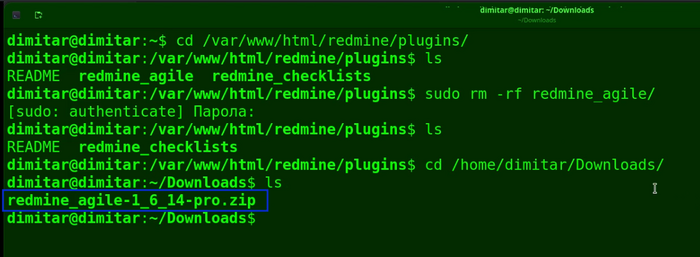
cd /var/www/html/redmine/plugins/
Note: Please keep in mind that the in the current example the Redmine is installed in the /var/www/html/redmine directory but it is up to you where it is installed, so the path to your Redmine in your case could be different. Also, the versions of the plugin could be different as well, for example could be higher than the ones showed in this guide.
- listing the plugin in the Ubuntu terminal

- listing the plugin in the Ubuntu files system
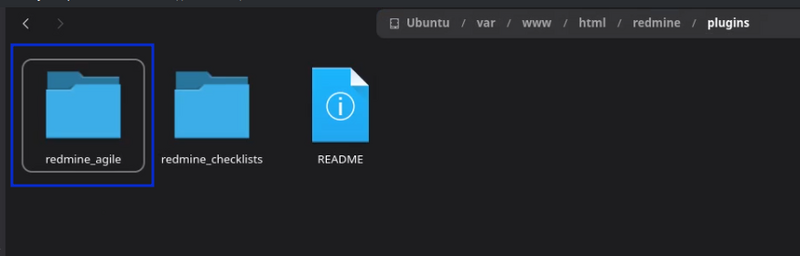
- delete it via the following command
sudo rm -rf redmine_agile/
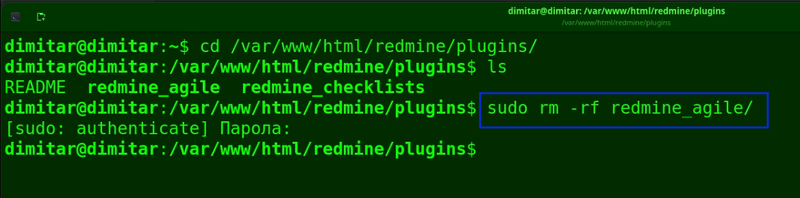
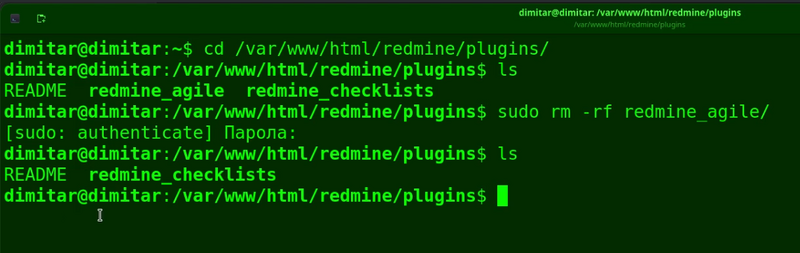
- check if the plugin is deleted in the terminal
- check if the plugin is deleted in the files system
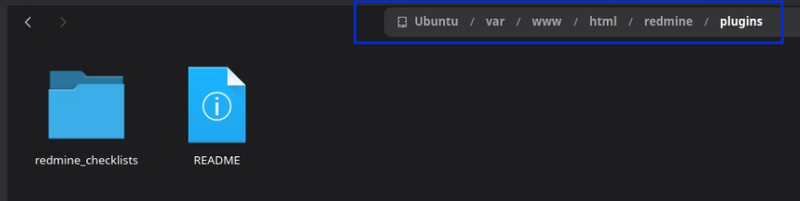
Copy the zip file of the new version
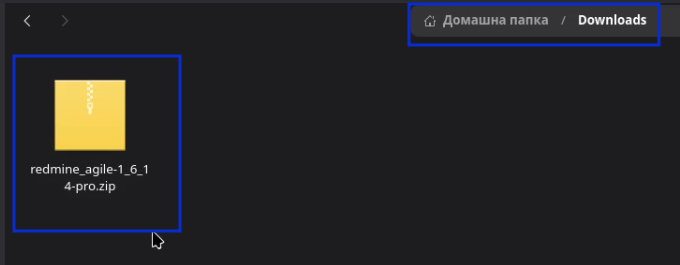
We have already downloaded the Agile newer (latest) version in our Downloads folder.
In the Downloads folder:
Checked in the Linux terminal with the "ls" command:
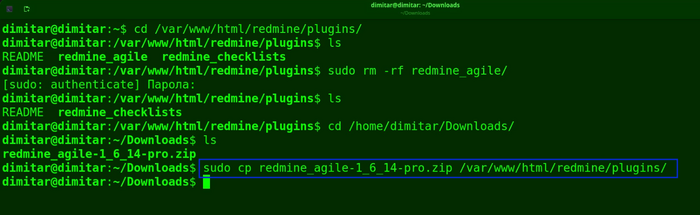
As being the Downloads folder in your terminal, please use the below command to copy the file in your redmine/plugins folder.
sudo cp redmine_agile-1_6_14-pro.zip /var/www/html/redmine/plugins/
In terminal:
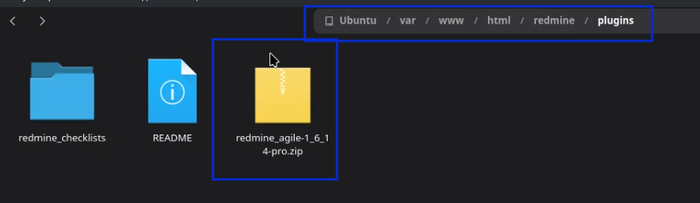
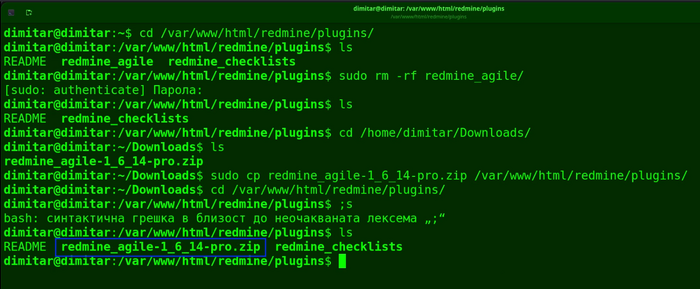
After it is copied the situation would be like this. Please navigate to your redmine/plugins directory.
- in the files directory:
- in the terminal with the "ls" command:
Unzip the file
As being in your redmine/plugins directory, please execute the below command to unzip the file.
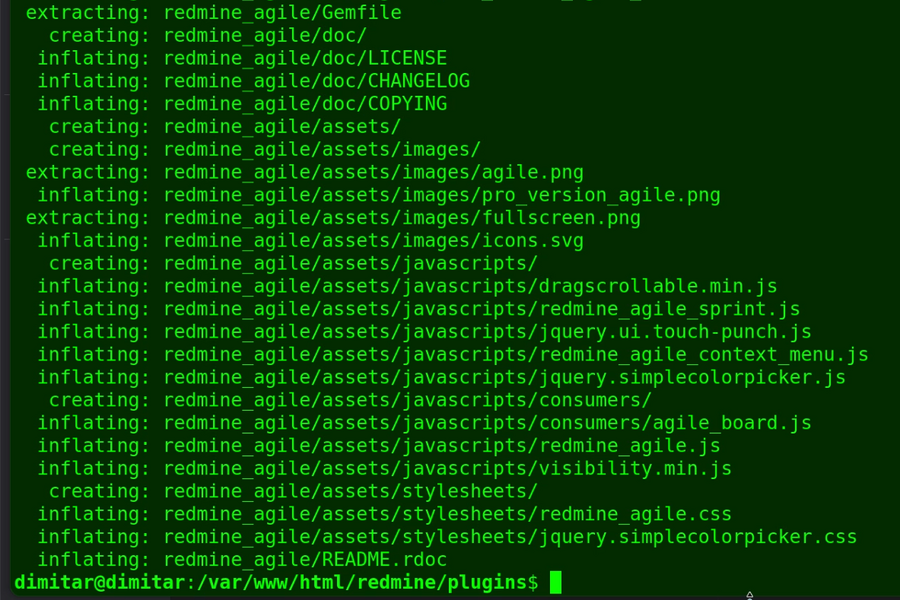
sudo unzip redmine_agile-1_6_14-pro.zip
The result of the unzipping in your terminal would be these rows:
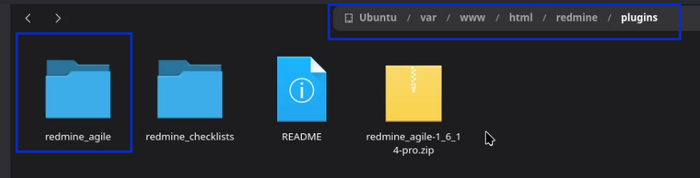
The result will be unzipped folder of the plugin.
- In terminal:

- In files directory:
Delete the zip file
The zip file is no longed needed, so we just delete it with the following command.
sudo rm -rf redmine_agile-1_6_14-pro.zip
Install the needed gems
Now you have to return back to the previous directory .../redmine/.
Important: Both gems and migration commands (the next command) have to be executed in the .../redmine/ directory and not the .../redmine/plugins directory.
Then run:
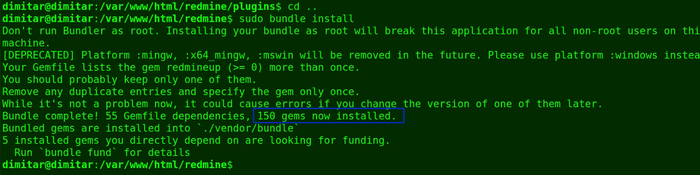
sudo bundle install
As a result will have the needed gems installed.
Migration
Please do the migration via this command:
sudo bundle exec rake redmine:plugins NAME=redmine_agile RAILS_ENV=production
The migration afterward will have these rows in your terminal:

Restart Redmine
We are almost done. The last step is to restart your Redmine.
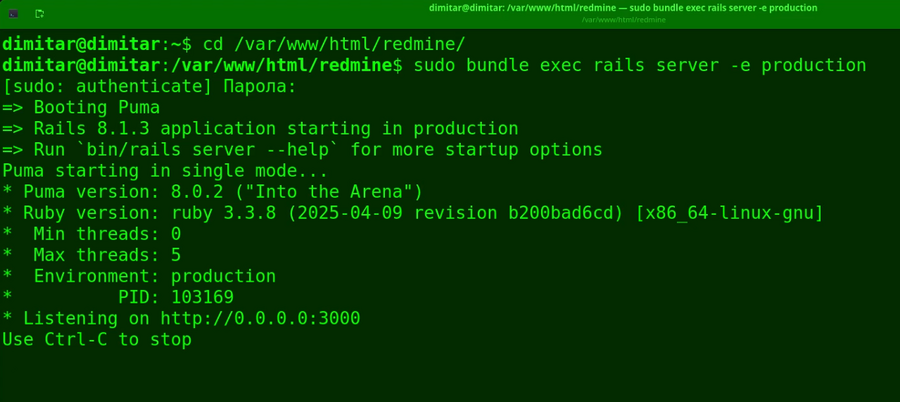
In our case we run the Redmine in the terminal so I just close the terminal with the running Redmine and open new one then execute the command to start Redmine (in the .../redmine/plugins directory):
sudo bundle exec rails server -e production
In the terminal it looks like this when started again:
Note: Please keep in mind that your Redmine could run in another way (not started via terminal) and you could restart it just like executing this command in the ...redmine/ directory ---> touch tmp/restart.txt. Also you can switch off and on your virtual machine if your Redmine is installed as a Bitnami Redmine virtual machine as described here.
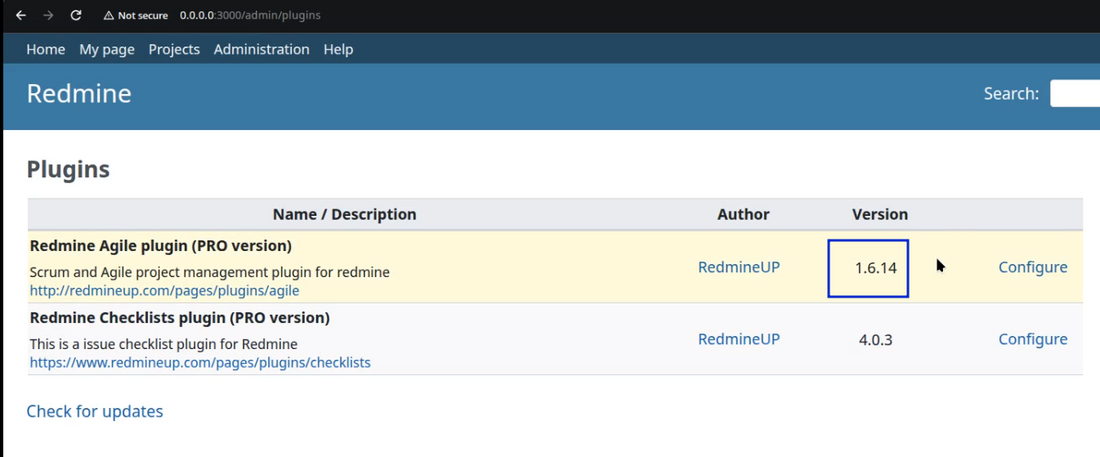
When you refresh your Redmine in the browser page (as it has been restarted) you will see the newer (latest) version of the Agile plugin installed successfully.
Video demonstration
To make the situation even more clear, please see this video demonstration of updating/upgrading the Agile plugin to a newer version on Redmine 7.