From Reporter 2.2.0, report templates have custom fields. A field can be a fixed value of the template, such as a company name, or a prompt field that the user fills in each time a report is created, such as a period or a title.
Add a field
- Select Administration, then Custom fields, and open the Report templates tab.
- Click New custom field and choose the format: text, long text, integer, float, date, boolean, list, link, user or key/value list.
- Enter the name.
- To ask for the value when a report is created, tick Prompt. Prompt is available for text, long text, integer, float, date, boolean and list fields.
- Tick For all templates, or choose the templates that get the field.
- Click Save.
The fields are shown in the form of the template, below Description. Fill in the value there. It is used when nobody enters another one.
Use a field in a template
Print the value with the custom_field filter on the template object:
<p>Period: {{ template | custom_field: 'Period' }}</p>
template also gives id, name and description of the template.
Fill in the values when you create a report
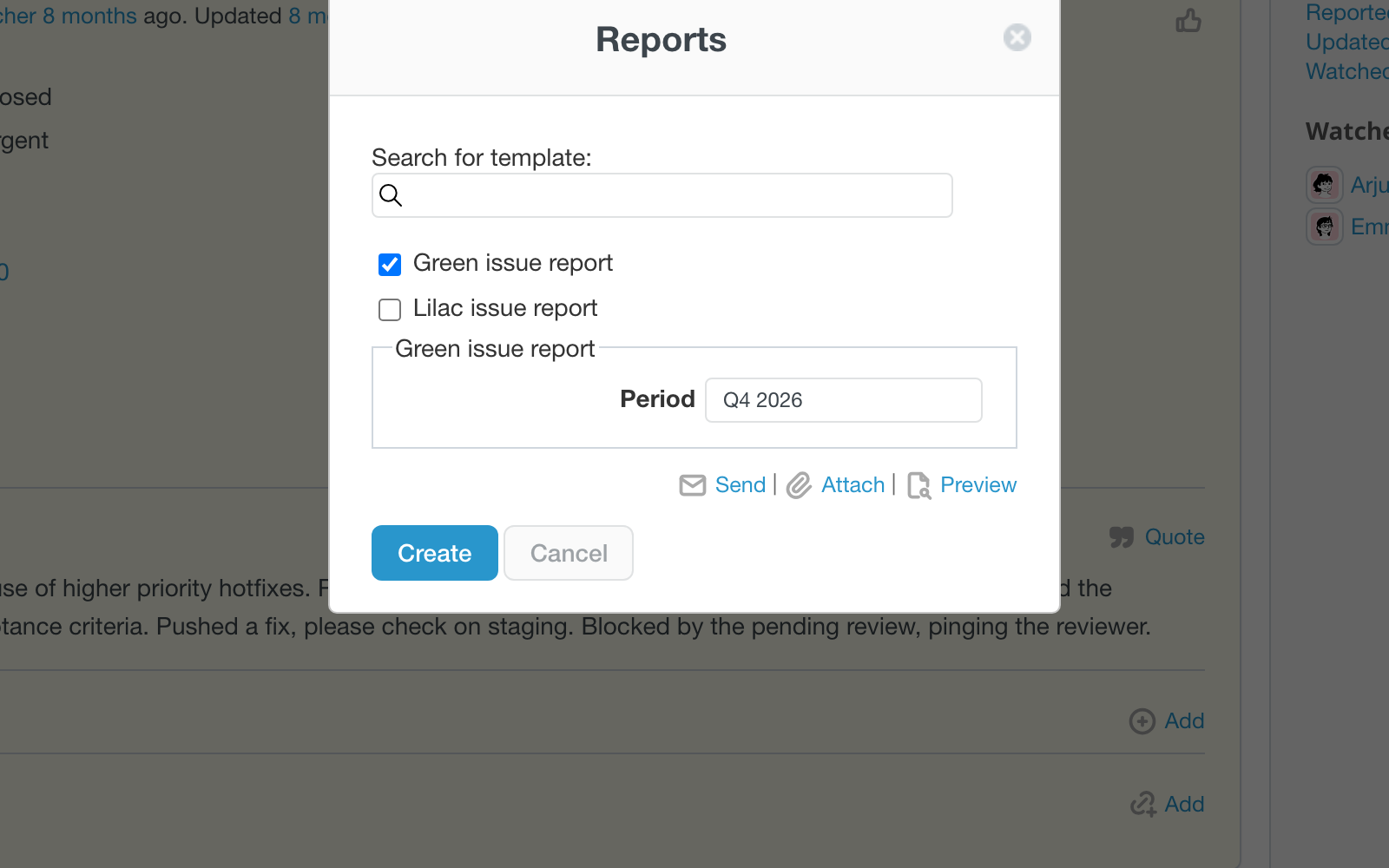
If you create a report from a template that has prompt fields, press Create or Attach in the Reports window. The window shows the fields of the chosen templates. A field that several chosen templates share is asked once, under Common fields. The other fields are grouped by template. Fill them in and click the button again.
- The values you enter apply to this report only. They are checked and escaped; a wrong value is ignored and the stored one is used.
- Preview shows the fields above the reports. Change a value to refresh the preview, and the values go with Download as PDF, Send and the public link.
- Public links contain the values that were filled in, and open the report with exactly these values.
- Scheduled reports and the My page blocks use the stored value of the field or its default, because nobody can fill it in.
While you write a template, the Preview tab of the editor shows the prompt fields of this template, so you can try different values.