From Reporter 2.2.0, report templates are edited in a code editor with highlighting, autocomplete and a live preview. You see the report while you write it, without saving the template and downloading a PDF.
Open the editor
You need the Manage report templates permission for project templates, or an administrator account for global templates.
- Select Administration, then Plugins, then Reporter, then Configure, and open the Report templates tab. For a project template, open the project Settings and select the Report templates tab.
- Click New report template, or click the name of an existing template.
The form has two tabs: Report template with the editor and Preview.
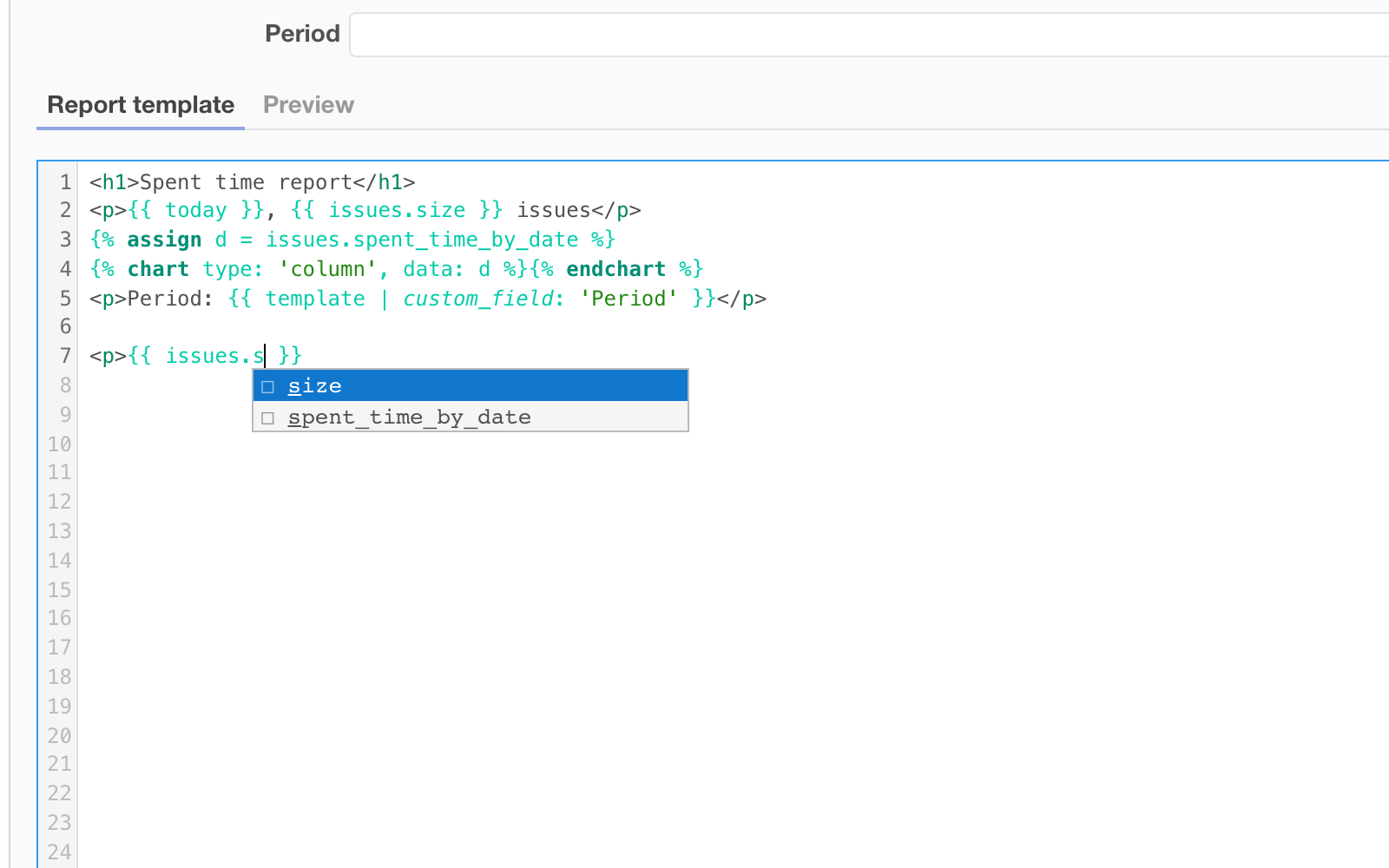
Write a template
The editor shows HTML with Liquid on top: line numbers, colors for tags, filters and strings. Autocomplete opens while you type, or press Ctrl+Space:
- after the opening of a Liquid tag: the list of tags;
- after the pipe character: the list of filters;
- after a dot, for example after
issues.: the fields of the object and of the objects related to it; - a word in the template: the variables available for the template type, such as
issuefor a single issue template,issuesfor a list of issues andtime_entriesfor time entries, plususer,nowandtoday. The list follows the Type select without reloading the page.
When you open a block tag such as for, if or chart, the editor offers the matching closing tag. Typing the opening brackets of a tag or an output inserts the closing ones for you.
Other editing keys: Ctrl+D (Cmd+D on Mac) selects the next occurrence, a click with Alt adds a cursor, Tab and Shift+Tab indent a block, and the search and replace panel is on top of the editor.
For the syntax of report templates, see Reporter template syntax.
Check the report on the Preview tab
Click Preview to see the report as a printed sheet in the orientation of the template. The Orientation select refreshes it.
- For an issue template, choose the issue in Issue for the preview. The list holds your last 10 visible issues, the latest is selected.
- For an issue list and a time entries template, the preview uses the first 10 visible records.
- If you see no visible data to build the preview, the project has nothing you may view yet.
The preview refreshes when you open the tab, change the issue or the type, a moment after you stop typing, and when you press Ctrl+Enter (Cmd+Enter). If the template has prompt fields, they appear next to the issue select, and a change refreshes the preview.
A Liquid syntax error is shown in a warning above the preview with the number of the line, and the line is marked in the editor.
Note: The preview shows the text from the editor, saved or not. Click Save when the report looks right.