Reporter can show a report right on your My page: choose a saved query and a report template, and the report is built from the query every time you open the page.
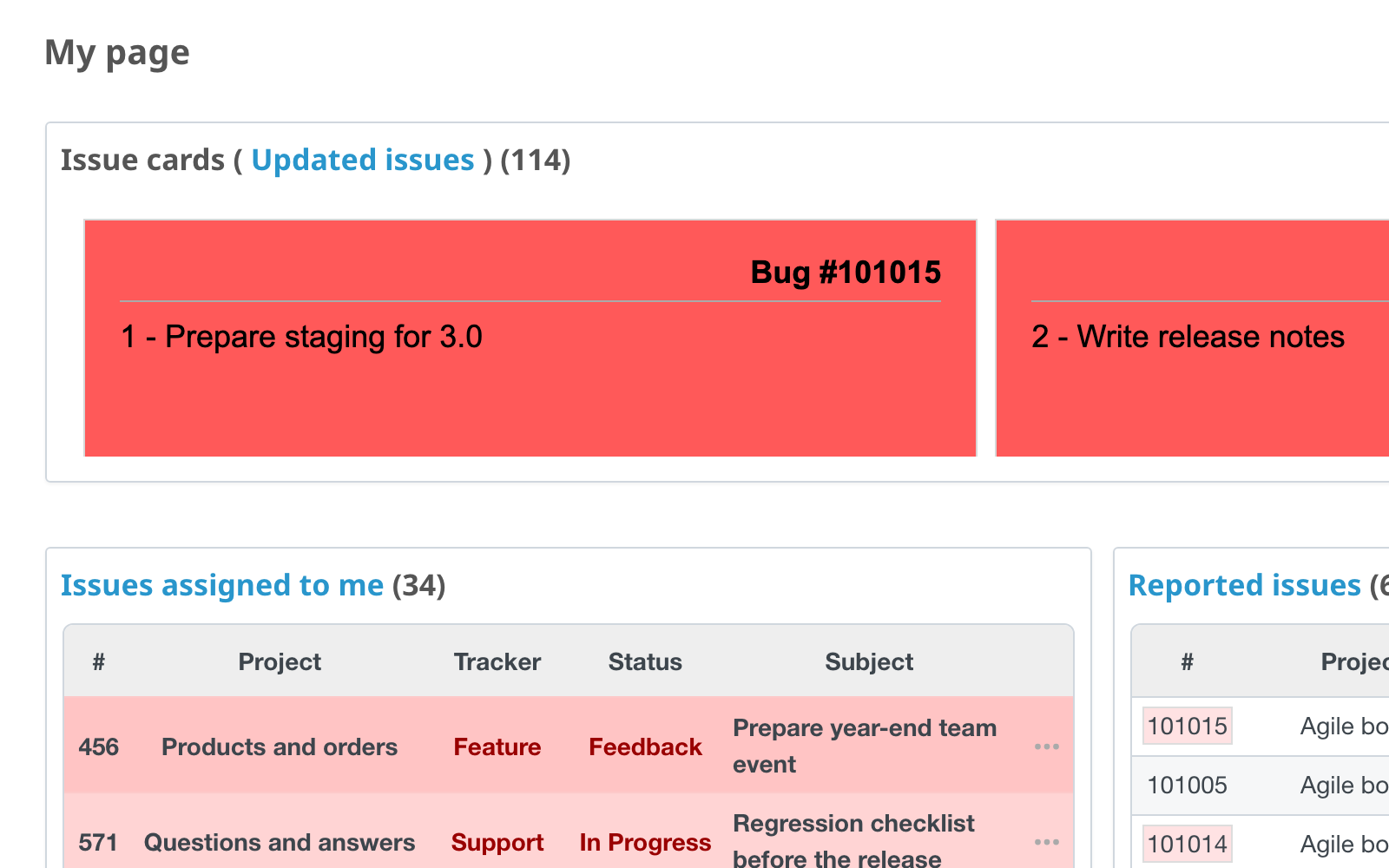
Add a report block
- Open My page. If the Add list is not shown, click Personalize this page.
- In the Add list, select Report by issues or Report by spent time.
- In the new block, choose a Query and a Report template, then click Save.
- Report by issues needs a saved issues query and an issue list template.
- Report by spent time needs a saved spent time query and a time entries template.
Only the queries that you may see are offered. To save a query, set the filters and the columns on the Issues or Spent time page and click Save.
What the block shows
The block header has the name of the template, a link to the query and the number of records. Below it the report is shown as it would be printed.
You can add up to 10 blocks of each kind, for example one report per project. The Report by spent time block is available to the users who may view spent time.
Related articles
- Reporter template syntax
- Schedules: send the same kind of report by e-mail on a schedule