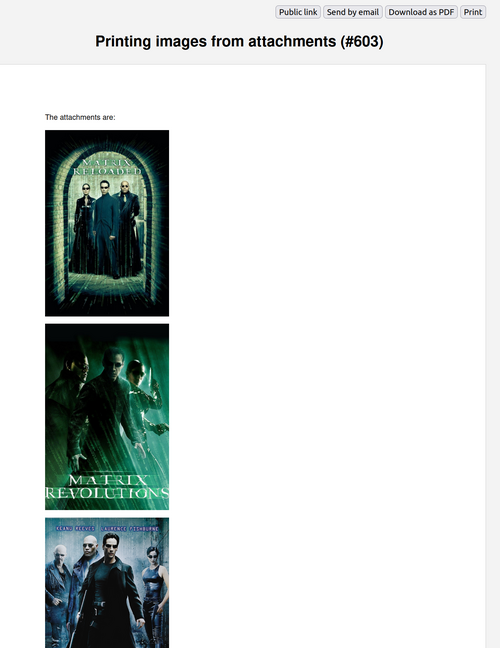
This article will show you how to print issue attachment images via the Reporter plugin.
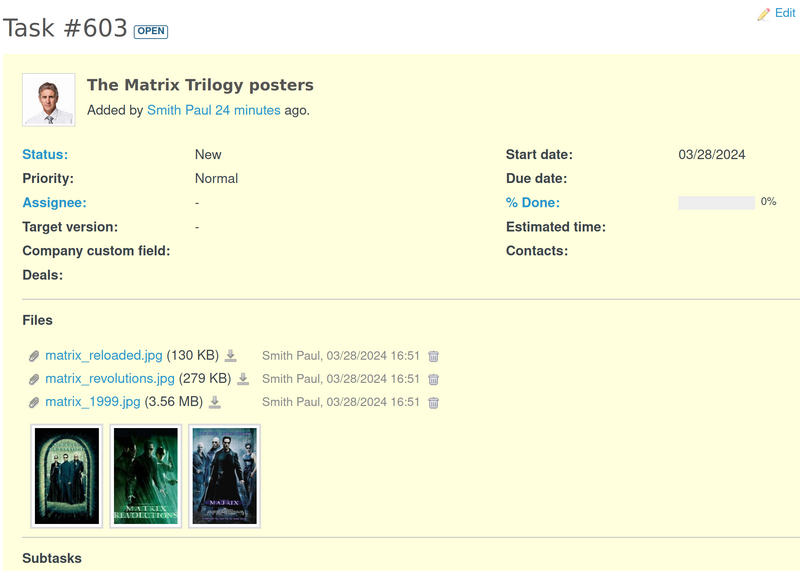
Firstly, let's add some new issue with images as attachments.
Okay, now please go to Administration - Plugins - Reporter - Report templates. Click on New report template and add the below code.
{% for attachment in issue.attachments %}
  <p><img width="200" height="300" src='{{ attachment.url }}' /></p>
{% endfor %}
As a result you will have this screen.
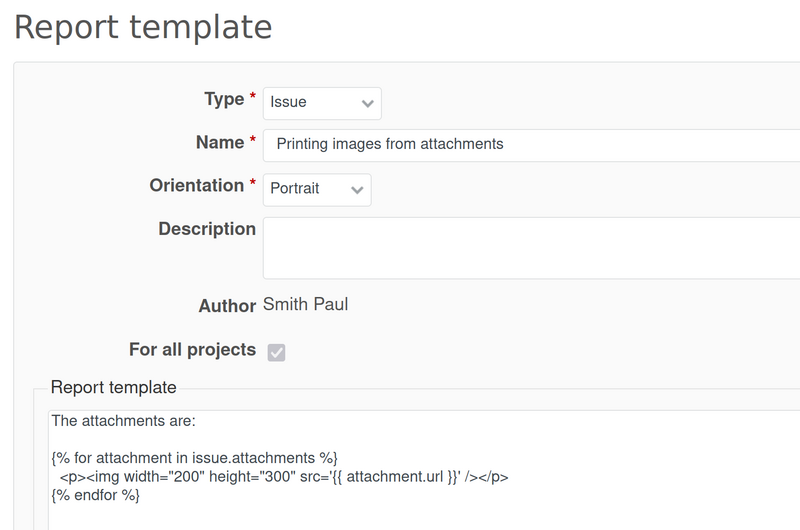
Note: Please keep in mind that you can adjust the width and height as well as add/remove anything on the code in accordance with your needs. This is just one simple example.
Afterward, go back to the issue and click on the issue options (the 3 dots button).
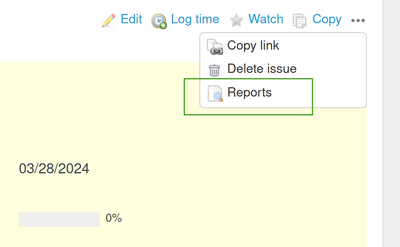
Then select your newly created reporter template.
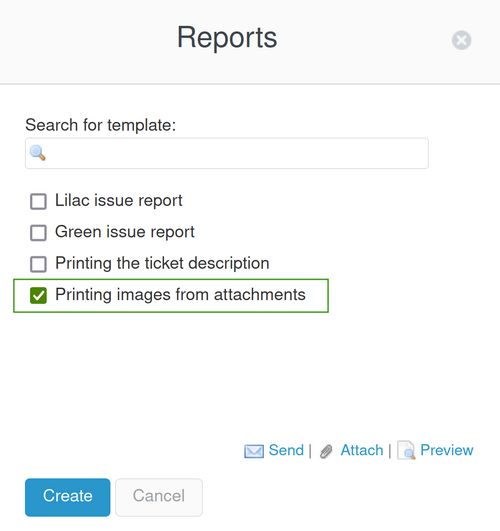
And finally, you will get the expected result - printed pictures of your issue attachments.