Invoices PRO can produce e-invoices by the European standard EN 16931: a ZUGFeRD / Factur-X PDF with the machine-readable XML inside, or an XRechnung XML file. You add the XML part to an ordinary invoice template, and the plugin attaches it to every PDF made from that template.
- How it works
- Download a ready template
- Add the template to Redmine
- Fill in your company data
- Leitweg-ID and buyer reference
- Get the PDF and the XML
- Write your own XML invoice
- Check your e-invoice
- Limitations
- Related articles
Available in Invoices PRO since version 4.4.1. The Light version has no custom templates and makes plain PDFs only.
How it works
An invoice template is a Liquid document with two parts:
- the printed part: HTML, the same as in any custom template;
- the XML invoice: the XML written between
{% xml_invoice %}and{% endxml_invoice %}. It is not printed.
When a template has an XML invoice:
- every PDF made from it (Download as PDF, the public link, the email attachment, Reports) becomes a hybrid PDF: a PDF/A-3B file with the XML attached as
factur-x.xml; - the Preview page shows a Download XML button that saves the XML alone. Use it for XRechnung, which public buyers in Germany expect as a separate XML file.
A template without the block makes a plain PDF, as before.
Download a ready template
Two templates are ready to use. Both are CII (UN/CEFACT Cross Industry Invoice) XML, checked with the veraPDF (PDF/A-3b) and Mediaatelier (XSD, EN 16931 and XRechnung rules) validators.
| Template | Standard | Use it for | |
|---|---|---|---|
| Factur-X (EN 16931) | ZUGFeRD 2 / Factur-X, profile EN 16931 | B2B invoices in Germany, France and the EU: one PDF a person reads and software imports | Download |
| XRechnung 3.0 (CII) | XRechnung 3.0 | Invoices to German public authorities (with a Leitweg-ID) and B2B buyers who ask for XRechnung | Download |
Output of the Factur-X template for a sample invoice: factur-x-example.pdf (hybrid PDF) and factur-x-example.xml (the XML inside it); of the XRechnung template: xrechnung-example.xml.
Add the template to Redmine
You need to be an administrator, or have the Manage invoices permission to add a template to one project (Project settings, tab Invoice templates).
To add the template:
- Open the downloaded
.liquidfile in a text editor and copy all of its text. - Select Administration, then Invoices, then the Invoice templates tab.
- Click New invoice template.
- Enter a Name, for example Factur-X (EN 16931). The name is shown on the Download XML button.
- Leave Active on. Turn on Default to use this template for every invoice that has no template of its own.
- Paste the text into the Invoice template field and click Create.
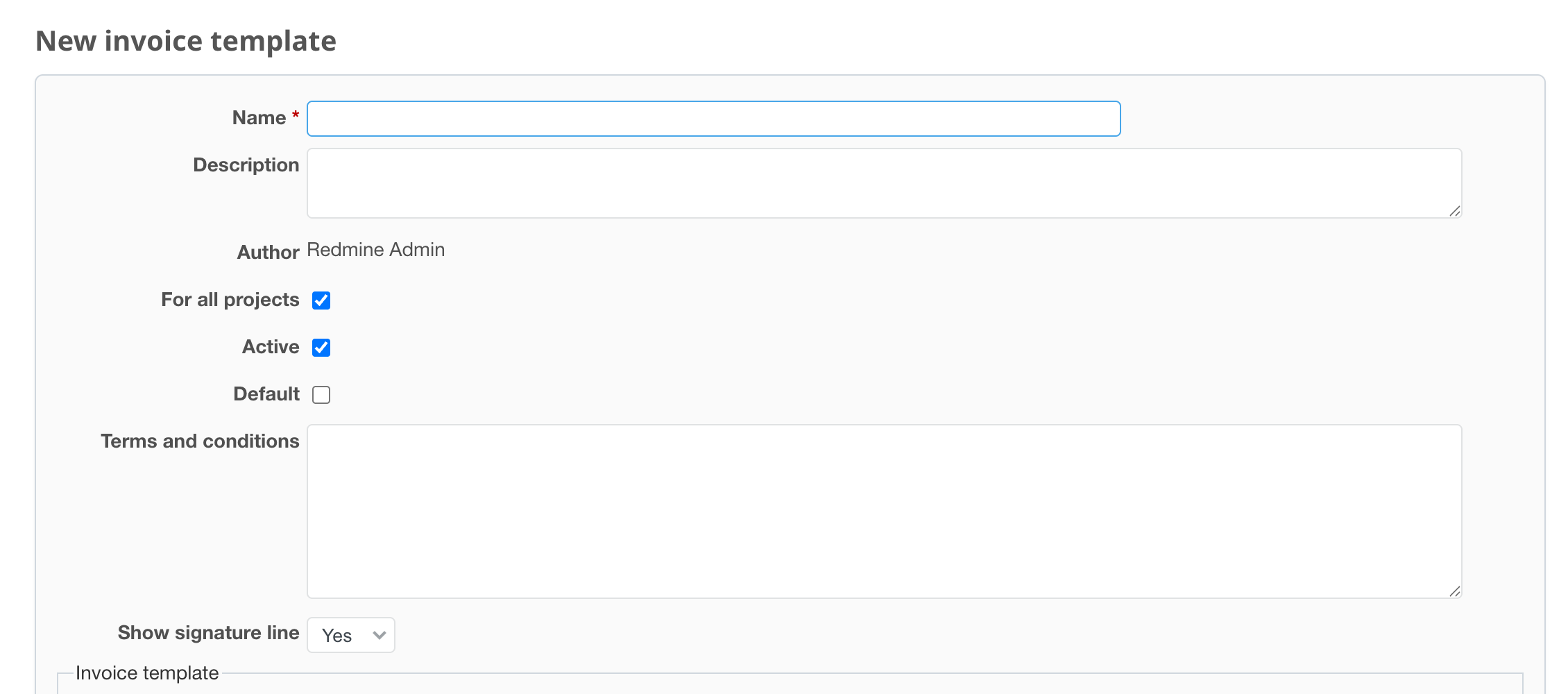
The template is used for an invoice when it is the default template (the Default checkbox, or Invoice template in Administration, then Invoices, then General; see How to set default invoice template), or, with Per invoice templates turned on in the same tab, when it is chosen in the invoice form.
Fill in your company data
The template reads the seller from the Company profile settings (Administration, then Invoices, then Company profile; a project can override them in its settings):
- Company name: the seller name;
- Representative: the contact person (XRechnung);
- Company info and Bill info: one
Key: valueper line, with these keys:
Street: Musterstraße 1
Postcode: 10115
City: Berlin
Country: DE
VAT ID: DE123456789
Phone: +49 30 1234567
Email: billing@example.com
IBAN: DE89 3704 0044 0532 0130 00
Phone and Email are used by XRechnung only. Spaces in the IBAN are removed. The XML ignores lines with other keys or without a key.
A key that is missing from the settings falls back to the value written in the template. These defaults are the assign lines at the top of the block; replace the sample values with yours if you prefer to keep the data in the template:
{% xml_invoice %}
{% assign seller_name = account.company | default: 'Your Company GmbH' %}
{% assign seller_street = 'Musterstraße 1' %}
{% assign seller_postcode = '10115' %}
{% assign seller_city = 'Berlin' %}
{% assign seller_country = 'DE' %}
{% assign seller_vat_id = 'DE123456789' %}
{% assign seller_iban = 'DE89370400440532013000' %}
The buyer comes from the invoice Client: the company name (or the contact name), the address and, for XRechnung, the primary email. For XRechnung the client must have a postcode, a city and an email.
Leitweg-ID and buyer reference
Both templates put the invoice Order number into the buyer reference (BuyerReference). For an invoice to a German public authority, enter its Leitweg-ID (for example 04011000-12345-03) in Order number. When Order number is empty, the invoice number is used.
Get the PDF and the XML
To get the e-invoice:
- Open the invoice.
- Select ..., then Preview. Preview replaces the PDF item when the invoice has a template.
- Click Download as PDF for the hybrid PDF, or Download XML (template name) for the XML alone.
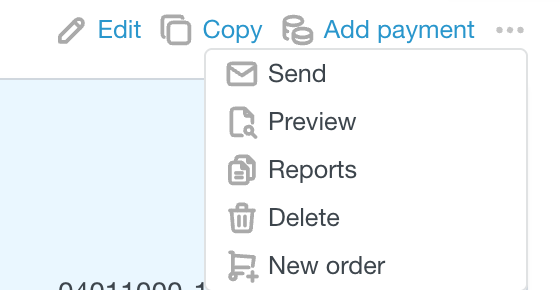
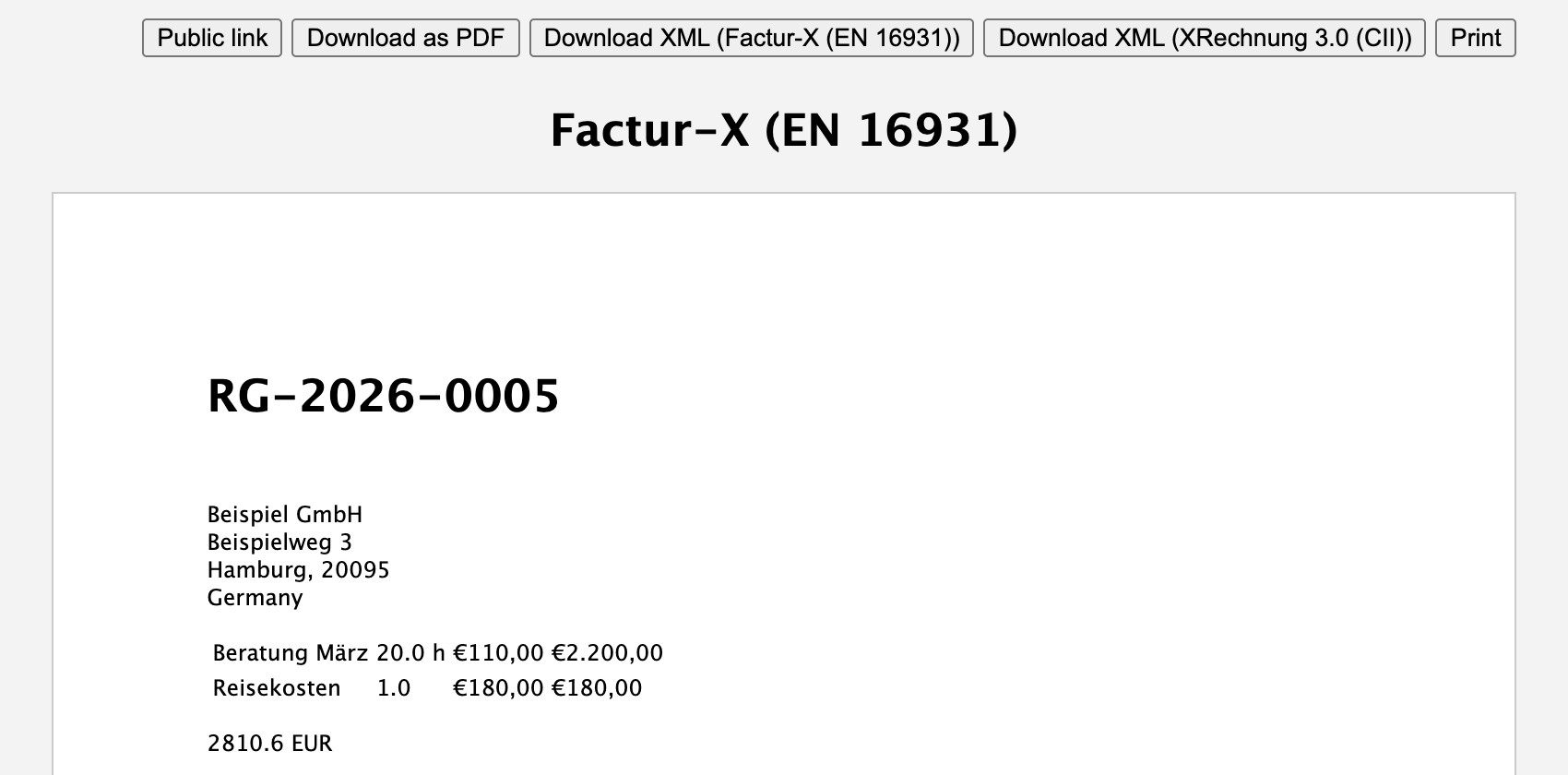
To get the XML of several templates at once, select ..., then Reports, pick the templates and click Preview: there is one Download XML button per template with an XML invoice.
The PDF sent with Send and the PDF behind the Public link are hybrid PDFs too.
Write your own XML invoice
You can change the downloaded templates or write the block into your existing template. The printed part stays as it is; add the block at the end:
{% xml_invoice %}
<?xml version="1.0" encoding="UTF-8"?>
<rsm:CrossIndustryInvoice xmlns:rsm="urn:un:unece:uncefact:data:standard:CrossIndustryInvoice:100" ...>
  <rsm:ExchangedDocument>
    <ram:ID>{{ invoice.number | xml_escape }}</ram:ID>
    <ram:TypeCode>380</ram:TypeCode>
    <ram:IssueDateTime><udt:DateTimeString format="102">{{ invoice.invoice_date | date: '%Y%m%d' }}</udt:DateTimeString></ram:IssueDateTime>
  </rsm:ExchangedDocument>
  ...
  {% for line in invoice.lines %}
  <ram:IncludedSupplyChainTradeLineItem>
    <ram:SpecifiedTradeProduct><ram:Name>{{ line.description | xml_escape }}</ram:Name></ram:SpecifiedTradeProduct>
    <ram:SpecifiedLineTradeAgreement><ram:NetPriceProductTradePrice><ram:ChargeAmount>{{ line.price | round: 2 }}</ram:ChargeAmount></ram:NetPriceProductTradePrice></ram:SpecifiedLineTradeAgreement>
    ...
  </ram:IncludedSupplyChainTradeLineItem>
  {% endfor %}
  ...
</rsm:CrossIndustryInvoice>
{% endxml_invoice %}
Rules for the block:
- Pass every text value through the
xml_escapefilter. It escapes ampersands, angle brackets and quotes and removes characters XML does not allow; a company name like Smith & Sons breaks the XML without it. - Write amounts with
| round: 2and dates with| date: '%Y%m%d'(format102). - Taxes by rate are in
invoice.tax_groups:group[0]is the rate,group[1]the tax amount,group[2]the base. - All template variables work inside the block.
The XML must be well-formed. If it is not, the PDF and the XML are not created and Redmine shows Failed to generate the invoice PDF. See the server log for details. The server log names the line of the error.
XRechnung differs from the Factur-X template by the guideline ID urn:cen.eu:en16931:2017#compliant#urn:xeinkauf.de:kosit:xrechnung_3.0, the business process ID, the seller contact (name, phone, email) and the electronic addresses of the seller and the buyer. Compare the two downloaded files to see every change.
Check your e-invoice
Before you send the first e-invoice made with a changed template, check one:
- the XML or the hybrid PDF in the Mediaatelier e-invoice validator (runs in the browser, nothing is uploaded) or the official KoSIT validator for XRechnung;
- the hybrid PDF in veraPDF with the profile PDF/A-3b Basic.
Limitations
- Tax categories: a line with tax gets category
S(standard rate), a line with 0% getsZ(zero rated). Exempt (E), reverse charge (AE) and intra-community (K) supplies need an exemption reason and are not covered by the templates. - The unit code of every line is
C62(piece). - The hybrid PDF is marked as Factur-X profile EN 16931, also when the XML inside is XRechnung. Send XRechnung as the XML file.
- The PDF is made by
wkhtmltopdf(version 0.12.6 was checked). After you upgradewkhtmltopdf, check one hybrid PDF in veraPDF again.