- The building blocks
- What happens when someone opens a page
- Layouts, Snippets and Parts inside the page
- What is cached
- Related articles
A page on a CMS Site is assembled from a few kinds of objects. Knowing which object does what lets you build a Site without duplicating anything. This article explains the objects, the order in which they are put together, and what is cached.
The building blocks
| Object | What it is |
|---|---|
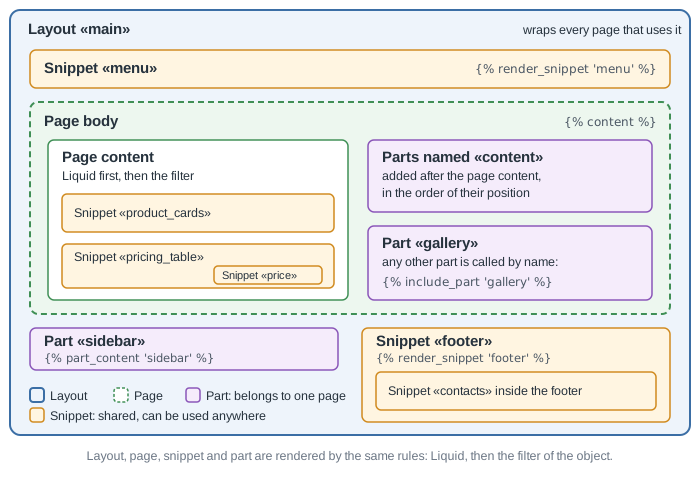
| Page | A node of the Page tree with a name, a slug, content, a Status, a Visibility, an optional Layout, Tags and Page fields. Its address is built from its slug and its parents' slugs. |
| Layout | The frame around a Page: header, footer, head, scripts. A Layout has a content type, so it can also produce CSS, JavaScript, XML or plain text. |
| Snippet | A named block of content that is shared across the Site. Write it once and render it from a Page, Part, Layout or another Snippet. |
| Part | A named block that belongs to exactly one Page, for example a sidebar or a banner of that Page. |
| Page field, Global variable, Assets | Data for templates: a value of one Page (page.fields), a Site-wide value (site.variables) and Site files (site.assets). |
What happens when someone opens a page
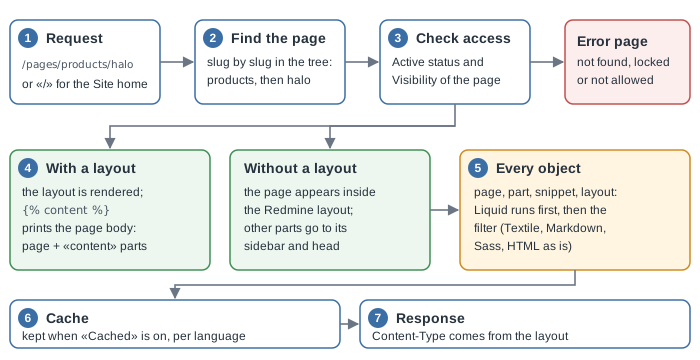
- The Page is found. The address
/pages/products/halois read slug by slug: the root Page with the slugproducts, then its child with the slughalo. The address/opens the Landing page. - Access is checked. A visitor sees a Page only when its Status is Active and its Visibility allows them. Editors see everything. A missing, locked or forbidden Page shows the Error page when one is set.
- The Layout wraps the Page. When the Page has a Layout, the Layout is rendered, and the tag
{% content %}prints the page body: the content of the Page followed by its active Parts namedcontent, in the order of their position. Without a Layout, the Page is shown inside the Redmine layout; a Part namedsidebarorheader_tagsthen lands in the Redmine sidebar or head. - Every object is rendered in two steps. Liquid runs first, then the object's Filter (Textile, Markdown, Sass, SCSS, JavaScript, or none for plain HTML). This is true for Pages, Parts, Snippets and Layouts, so a Layout's Filter sees the whole frame including the page body.
- The answer is sent. The content type of the Layout becomes the content type of the answer,
text/htmlwhen it is empty.
A Liquid error does not break the Site with a server error: its message is printed in the place of the object that failed.
Layouts, Snippets and Parts inside the page
- In a Layout, use
{% content %}for the page body andpart_content 'sidebar'for a named Part of the current Page. A Part that is missing or locked prints nothing. - In any object, use
render_snippet 'footer'to render a Snippet. It is rendered with its own Filter, like a small page of its own. A Snippet can render other Snippets. include_part 'gallery'inserts the content of a Part into the current template, and you can pass values to it as variables.- The Liquid context holds the current Page (
page), the Page tree (pages), the Site (site), the request parameters (params),current_userandflash.
What is cached
A Page or a Part is cached when its Cached option is on. The cached text is kept for Cache expires in minutes (15 when the setting is empty) and is kept per language.
- Snippets: the cache key of every Page, cached Part or Layout contains a stamp of the Snippets it renders, at any depth. When you save a Snippet, the pages that show it get a new key by themselves. You do not have to refresh the cache.
- Layouts: saving a Layout also makes a new key. The setting Layout caching caches the whole rendered frame of a cached Page, separately for each user.
- Parts and Page fields: saving them expires their own Page.
- Refresh cache in the CMS settings clears the cache of the whole Site. The Preview and an older version opened with
?version=are never cached.