Custom fields of an invoice template keep the data that changes from template to template or from report to report: payment terms, a PO number, a service period, a bank note. Mark a field as Prompt and Redmine asks for its value every time you build a report.
- Create a field
- Fill in the value of a template
- Use the field in a template
- Ask for the value in a report
- Share a report with the values
- Related articles
Available in Invoices PRO since version 4.4.0. The Light version has no custom templates.
Create a field
You need to be an administrator.
To create a field for templates:
- Select Administration, then Custom fields, then New custom field.
- Choose the type Invoice templates.
- Enter the Name, for example Payment terms, choose the format and, if you like, the Default value.
- Turn on For all templates to use the field in every template, or choose the templates that get it. The list shows 10 templates; type to search the others.
- Turn on Prompt if Redmine should ask for the value when a report is created.
- Click Create.
Fill in the value of a template
The fields appear in a block of their own on the template page. Enter the value that the template uses by default, for example Net 14 days, and click Save.
Use the field in a template
In the Liquid text of a template, read the value with the custom_field filter:
{{ template | custom_field: 'Payment terms' }}
Use {{ invoice.template | custom_field: 'Payment terms' }} to read the field of the template chosen for the invoice. See template variables for the rest of the markup.
Ask for the value in a report
When a template has a Prompt field, Redmine asks for the value before it creates a report:
- Open an invoice and choose Reports in its actions. In the invoice list, use the context menu.
- Choose one or several templates.
- Click Create. A form with the Prompt fields of the chosen templates opens. A field that several templates share is shown once under Common fields; the other fields are grouped by template.
- Enter the values and confirm. The PDF contains them.
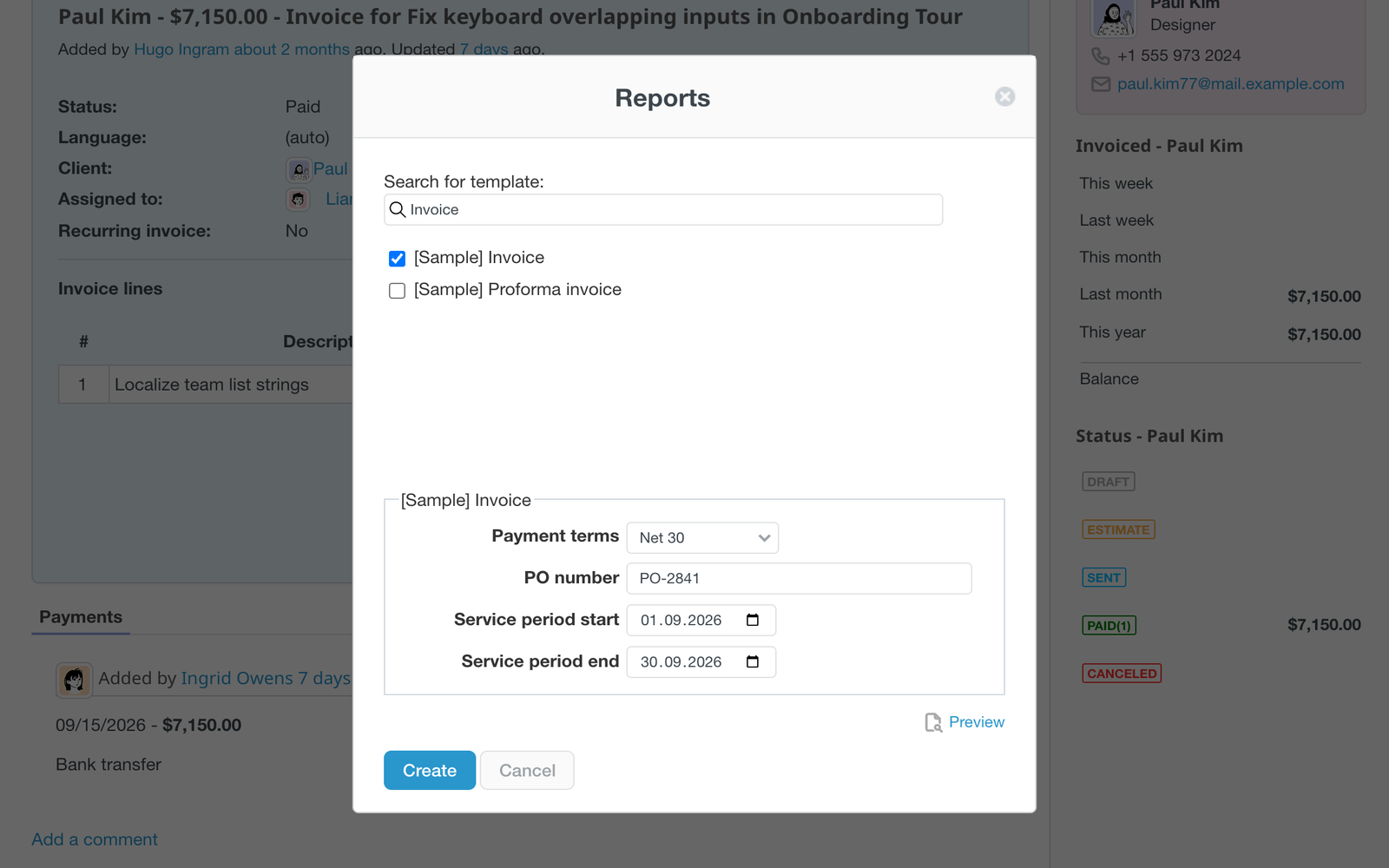
The same fields are shown above the report in the Preview. If you change a value there, the preview and the Public link change with it.
The value of a field is taken in this order: the value you entered (only for Prompt fields), the value saved on the template, the default value of the field, and an empty value. What you enter in a report is not saved on the template.
Share a report with the values
The Public link from the preview carries the values you entered, so a client sees the same document. The values are signed in the link: if somebody changes them in the address, the page stops opening. The public link of the invoice itself shows the default values.