The template editor of Invoices PRO highlights Liquid and HTML, suggests tags, filters and invoice fields while you type, and shows the finished invoice next to the code. You see mistakes before you save the template.
Available in Invoices PRO since version 4.4.1. The Light version has no custom templates.
You need to be an administrator, or have the Manage invoices permission to edit the templates of one project.
Open the editor
To edit a template:
- Select Administration, then Invoices, then the Invoice templates tab. For one project, select Settings, then Invoices, then Invoice templates.
- Click New invoice template, or Edit next to a template.
- Open the Invoice template tab under the main fields.
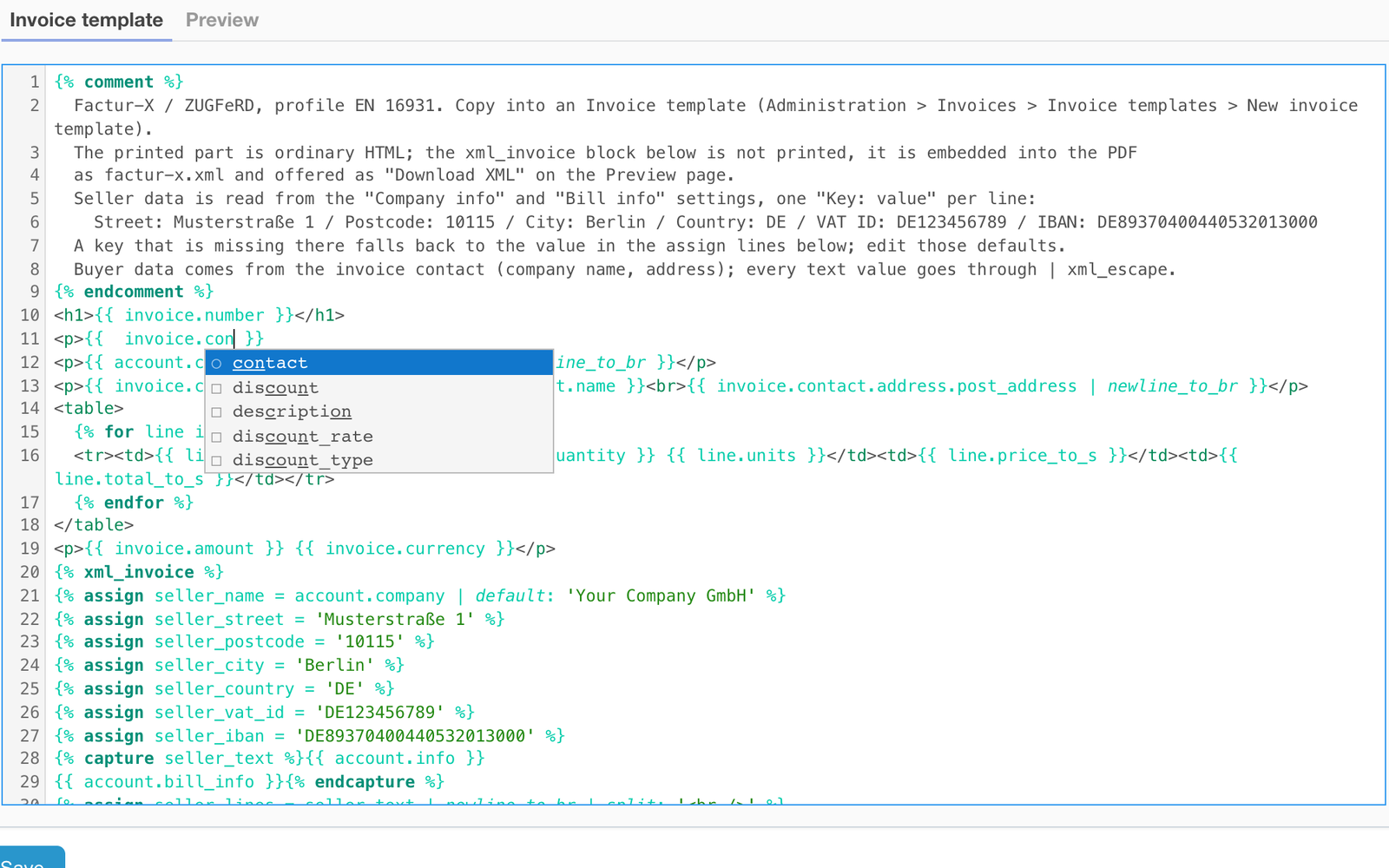
The editor has line numbers, Liquid delimiters, tags, strings and filters in their own colours, and always shows at least 25 lines. HTML is highlighted as HTML. The text between {% xml_invoice %} and {% endxml_invoice %} is highlighted as XML (see e-invoices).
Use autocomplete
The suggestions open while you type, and with Ctrl-Space. Press Enter or Tab to accept one.
| You type | The editor suggests |
|---|---|
{% |
every Liquid tag. When a block such as if or for is open, its closing tag and its branch tags (else, elsif, when) come first. |
a pipe | inside {{ }} or {% %} |
every filter. A filter with arguments is inserted as name: , and the list shows the argument names. |
invoice. |
the fields of the invoice. Relations open further: invoice.contact., or invoice.lines followed by first or last. The loop variable of a for loop gets the fields of a line. |
a word inside {{ }} |
invoice, account, now, today, the loop variables and the names you set with assign and capture. |
| a word outside the tags (two letters or more) | ready blocks: lines, taxes, account_block, contact_block, xml_invoice. |
Fields added by other RedmineUP plugins to the invoice appear in the list by themselves. Nothing is suggested inside a quoted string.
Edit faster
- Typing
{{or{%adds the closing brackets with spaces; type the closing brackets over them and the cursor jumps out instead of doubling them. - Tab and Shift-Tab indent or outdent the selected lines.
- Cmd-D (Ctrl-D on Windows and Linux) selects the next occurrence of the word; Cmd-G finds the next match; Cmd-click adds another cursor.
- The search and replace panel opens at the top of the editor.
- Cmd-Enter (Ctrl-Enter) refreshes the preview at once.
Check the result in the preview
Open the Preview tab. The invoice is drawn as an A4 sheet with your unsaved text, so you do not have to save the template to see the change.
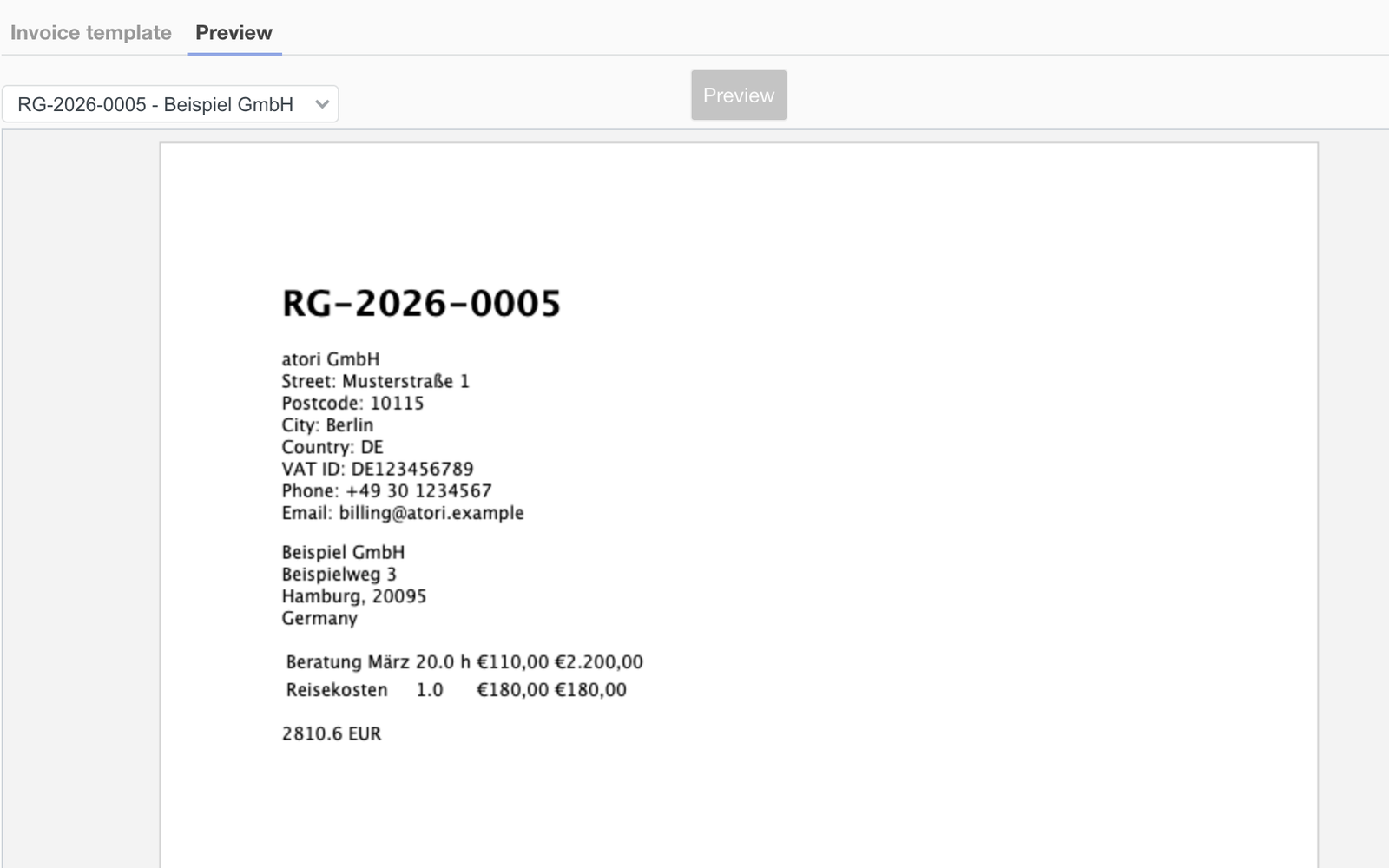
- Choose the invoice to show in the list above the sheet. It lists the last 10 invoices you can see. When you cannot see any invoice, the preview shows a sample invoice INV-0001.
- The preview refreshes when you open the tab, when you choose another invoice, and shortly after you stop typing.
- The xml_invoice block is not shown: it is not printed.
When the template has a Liquid error, the preview keeps the last good picture. A yellow panel above it names the line, for example Line 12: Unknown tag, and the editor marks the line. A block that is never closed is marked on the line where it was opened.