
Picture taken from the Web (online)
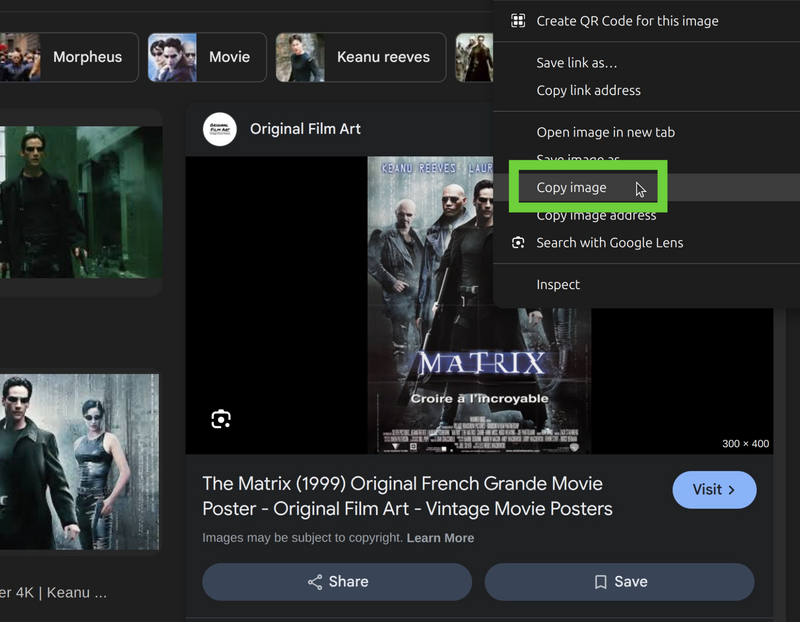
Please go to the Internet and find the picture you will need to send as embedded image via your Helpdesk reply. When you find it, right click on it and make sure to click on Copy image. It is a very important step because "copy image address" will just copy the link to the image and will not embed it correctly to the reply.
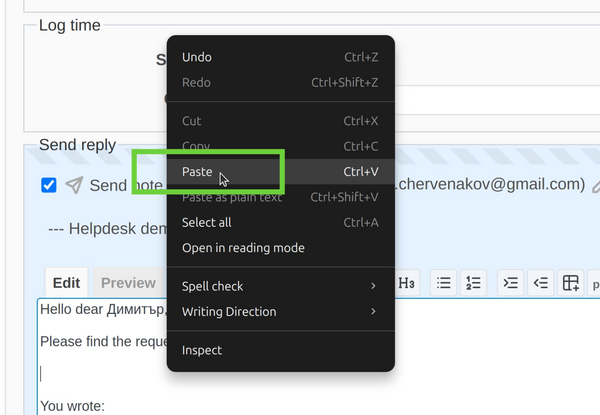
Now go to the Helpdesk ticket and reply to the client. Write the text of your answer and when the time comes for the picture just click Ctrl+V keyboard command for pasting it or use the longer way of right click and then "paste" option.
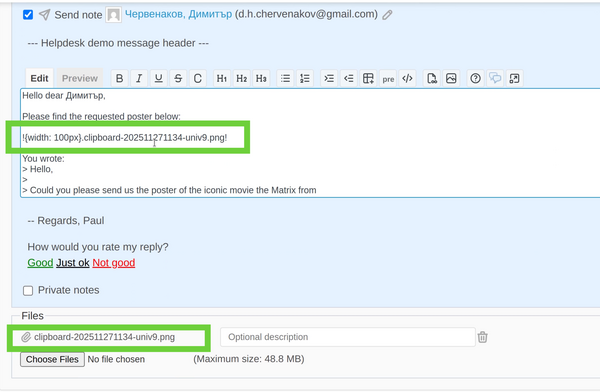
This is it. Then the picture will be automatically embedded into the reply (the link will be between exclamation marks which means the pic will be embedded) as well as the image itself is added as an attachment file to the ticket. This is because some email clients are not so well supported and the answer will not come as an embedded image but just as files. So, in any case, the pictures will be not lost.
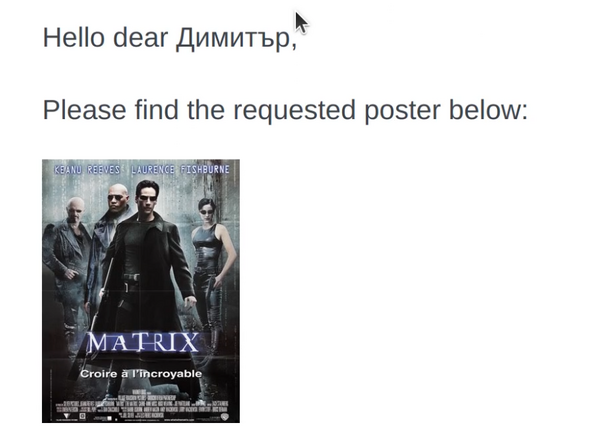
After submitting the reply in the Helpdesk thread it looks like this (embedded).
In the email client it also looks good (and embedded).
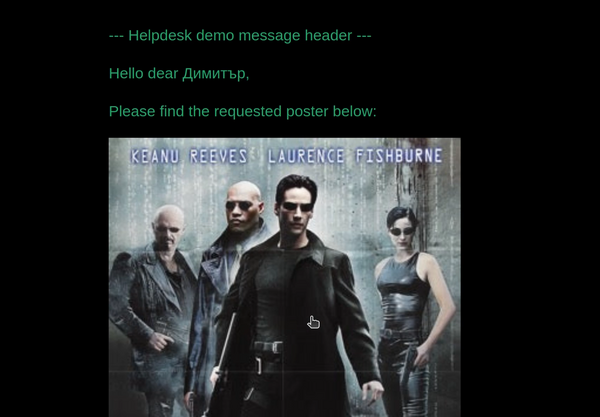
As said earlier, the pictures are added as attachment files to the email itself.
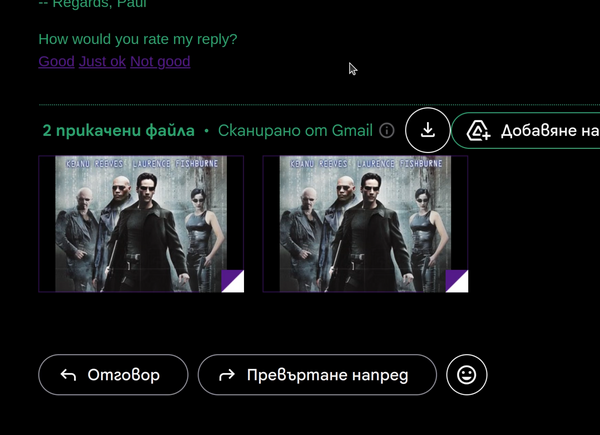
Note: Please note that the attachment files are two for testing purposes. You could check the video at the bottom of the article for more detail.
Locally taken image
The second way is via having an image already saved locally on your computer. You have to just open the image, right-click on it and then select copy or use the keyboard combination of Ctrl+C.
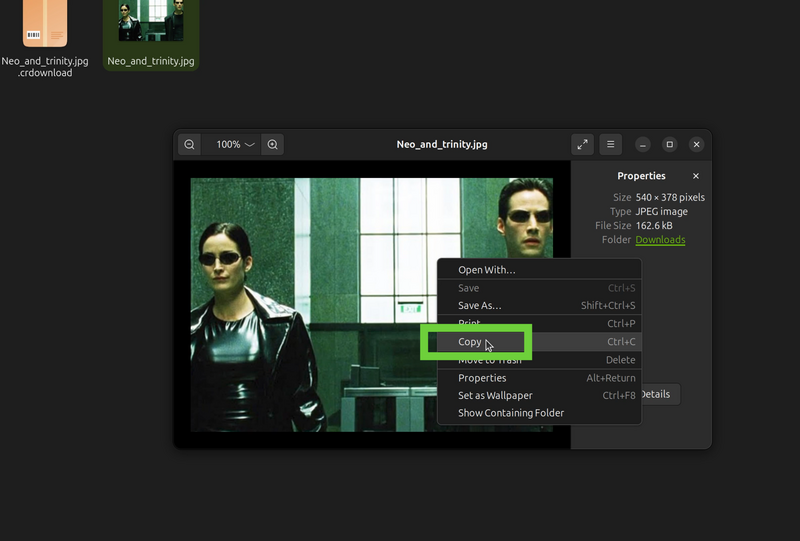
Now the procedure is the same. When you go to a ticket reply, you just paste the reply as already described earlier.
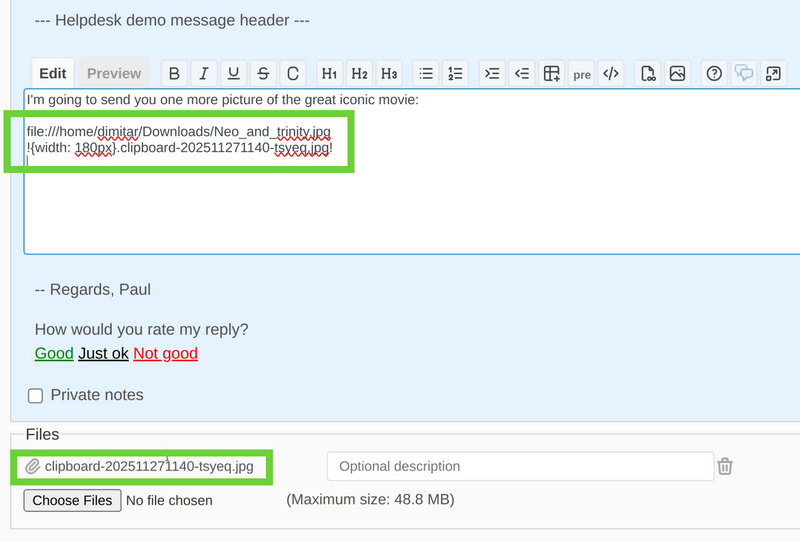
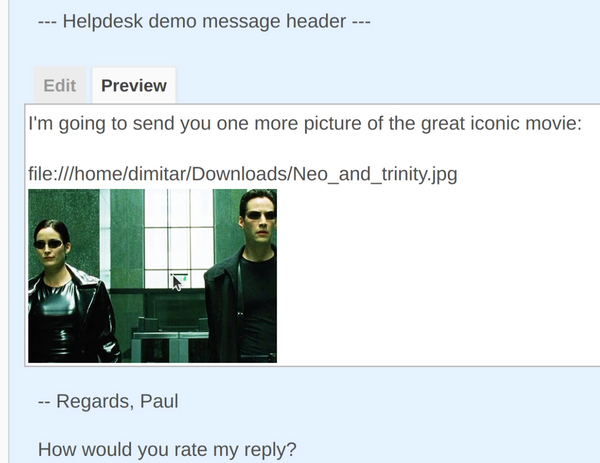
As you see, the only difference is that you get the local path as well pasted.
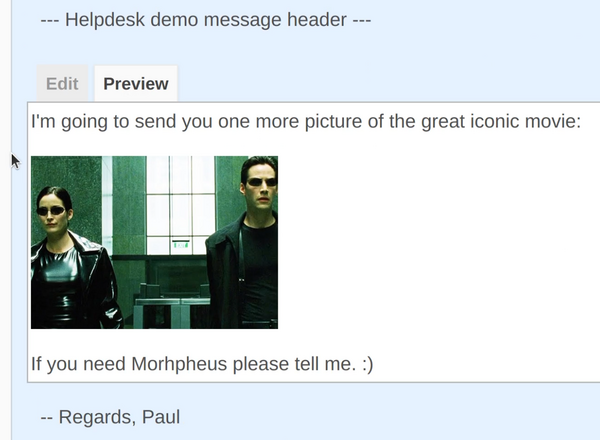
So, please remove the path itself (just delete it):
file:///home/dimitar/Downloads/Neo_and_trinity.jpg
And leave only the clipboard embedded pic between the exclamation marks:
!{width: 180px}.clipboard-202511271140-tsveq.jpg!
And it will be like this.
- Before removing the path:
- After removing the path:
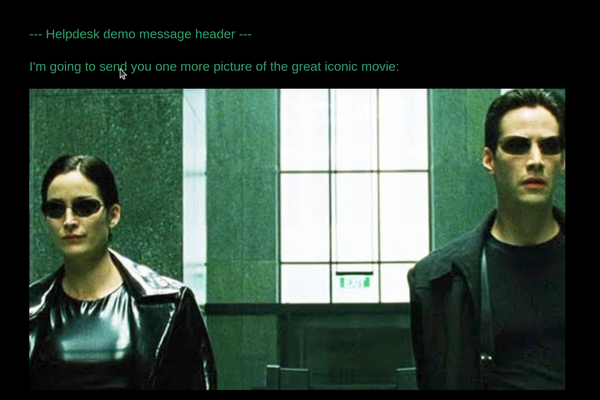
As expected, it looks fine and embedded in the email client.
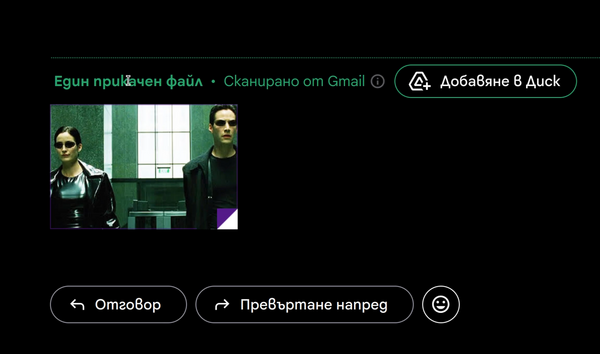
And also appears as attachment as well.
Video demonstration
The following video demonstration shows you how to use the Clipboard Image Paste feature of the Helpdesk plugin.