
- Reply and set the status
- Reply to several tickets at once
- Configure Answered and Reply statuses
- Related articles
When you reply to a customer, you can change the status of the ticket in the same step. The Send as button sends the note by email and sets the status you select, so you do not need to change the Status field by hand.
You need the Send response to contact permission and a status you are allowed to set by the workflow of your role.
Reply and set the status
To send a reply and set the status:
- Open the ticket and select Edit (or write a note in the Add a note form).
- Check Send note. The Submit button turns into a split button.
- Write the reply.
- Select the arrow next to the button, then select Send as
, for example Send as Resolved.
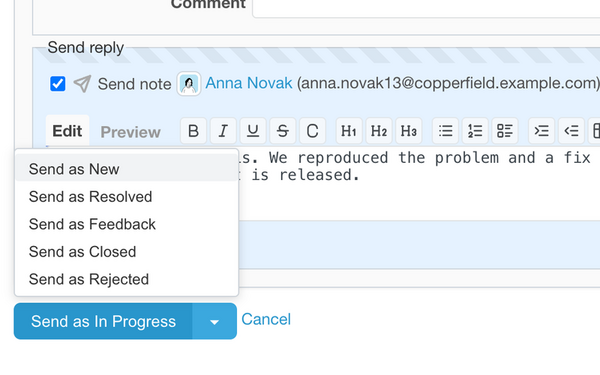
The email goes to the contact, the note is saved, and the ticket gets the selected status.
The main button works with the Answered status of the project. When it is set, the button reads Send as
The list of the arrow shows the other statuses available for the ticket. Only statuses allowed by the workflow of your role can be chosen.
Reply to several tickets at once
The same split button is in the bulk reply form. Its list also has Send and keep status, which sends the reply and leaves the status of every selected ticket unchanged. The workflow is checked for each ticket.
Configure Answered and Reply statuses
To set the statuses for a project:
- Open the project and select Settings, then Helpdesk.
- On the Helpdesk tab, select the Answered status: the status set when your reply is sent.
- Select the Reply status: the status set when the contact replies by email.
- Select Save.
Before version 4.5.0 these settings were called Answered ticket status and Reopen ticket status.