
Split ticket moves a part of a long email conversation into a new ticket. Use it when a customer replies to an old thread with a different question and you want to handle the new topic separately.
You need the Edit issues, Add issues and View helpdesk tickets permissions in the project. The Split action is available only on incoming messages (emails from the contact) of a ticket created from email.
Split a ticket
To split a ticket:
- Open the ticket and find the incoming message where the new topic starts.
- Select ... (more actions) on that message, then Split.
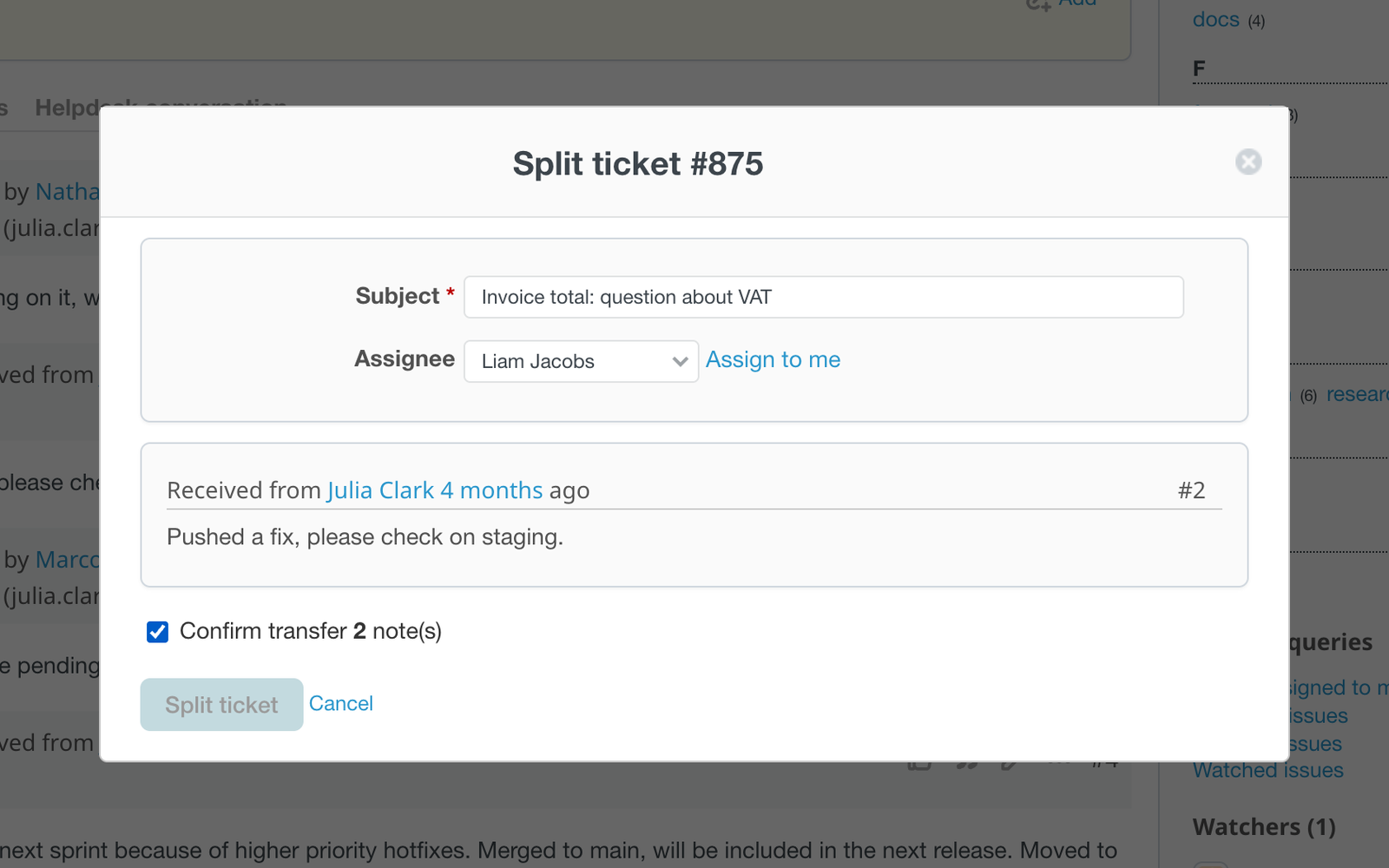
- In the Split ticket #ID window, check the Subject of the new ticket. It is the subject of the original ticket by default.
- Optional: select an Assignee for the new ticket, or select Assign to me.
- Check Confirm transfer N note(s). The number shows how many notes will be moved. The Split ticket button stays disabled until you check this box.
- Select Split ticket.
You are redirected to the new ticket. The new ticket is related to the original one with the Related to relation.
What happens to the messages
- The message you chose becomes the description of the new ticket, and it is removed from the original ticket.
- All notes and emails after that message, with their dates and authors, move to the new ticket. Private notes that you cannot see stay in the original ticket.
- Attachments of the moved messages move with them.
- Changes of fields (status, assignee, custom fields) never move. They stay in the history of the original ticket.
- Time entries stay where they are.
- The new ticket is a copy of the original: tracker, priority, custom fields and watchers are copied. The status is the default one, and you are the author.
- The ticket is linked to the same contact. When the contact replies to a moved email, the reply lands in the new ticket.
- The contact does not get an automatic answer for the new ticket. Staff notifications about a new issue are sent as usual.
Both tickets get an entry in the history, for example Ticket split in the original one and Split from in the new one, with the number of moved notes.
If the new ticket cannot be saved (for example, the default status requires a field), nothing is changed and the errors are shown in the window.