- Choose the articles
- What the visitor sees
- Choose articles per page
- Write articles that work in the Widget
- Related articles
The Articles tab shows full help articles inside the Widget: a list with search, and a click opens the formatted article with headings, tables, code and images. The visitor reads the answer without leaving your page and without a ticket. A closed Redmine can still share its articles this way.
Choose the articles
You need to be an administrator.
- Open Administration, then Helpdesk, then the Widget tab.
- In the Articles group check Show the articles tab. It is off by default.
- List the articles in Articles, one per line:
wiki:project:Pageis one wiki page;wiki:projectis the start page of the wiki;wiki:project:Page:*covers the child pages of a page;wiki:project:Page:**covers all pages below it, at any level.
- Select Save.
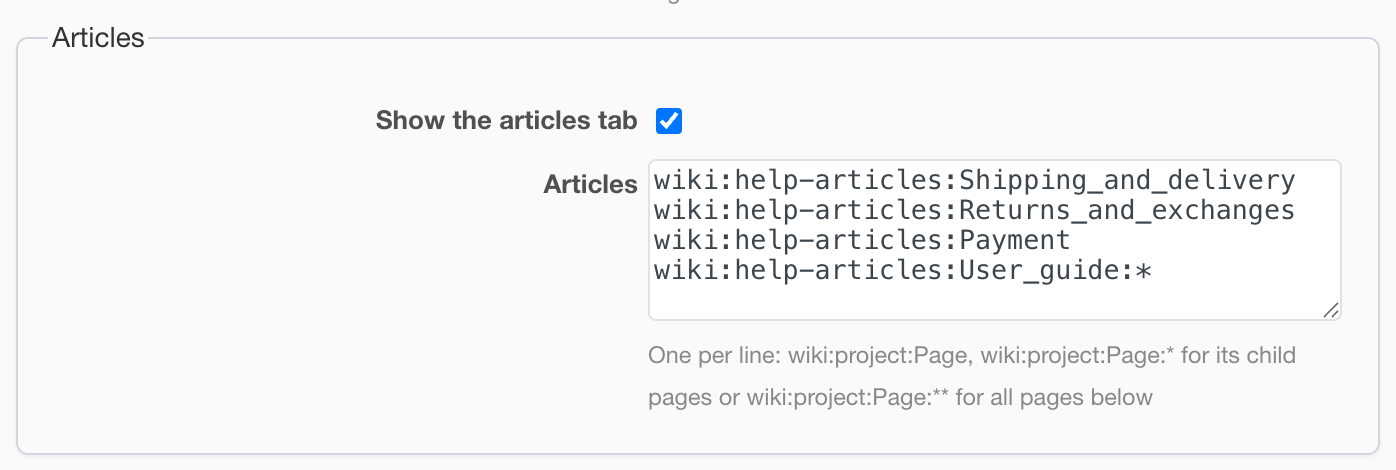
Lines without a star are shown in the list in the order you write them. Pages covered by a star stay out of the list; they open from a link inside an article ([[Page|Text]]) and are found by search. A link to a page the list does not cover is shown as plain text. Sources that cannot be found are listed under the field after saving.
The list covers only what you name. A visitor cannot read any other page, even from a closed Redmine. Everything in the list is public, and whoever can edit a listed page can publish it.
What the visitor sees
- A search field above the list (from 2 characters). Results come from everything the list covers, including child pages; Back returns to the results.
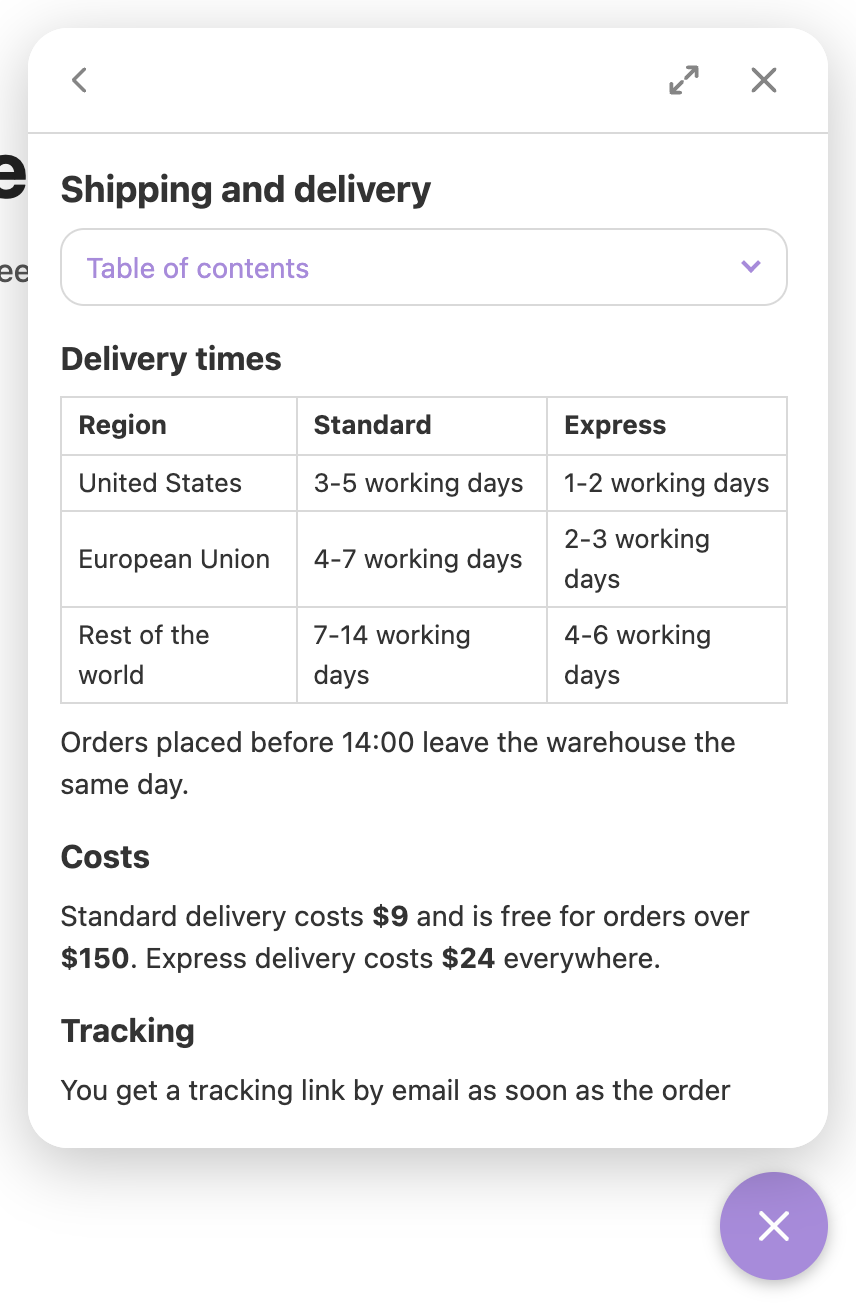
- A click on a title opens the article in the same panel. The header then holds only Back, Expand and Close. Expand widens the panel to the full height of the window and keeps that size while the visitor moves between articles.
- A paragraph with only
{{toc}}becomes a collapsed table of contents that scrolls the article and highlights the section being read. Other wiki macros are removed. - Images attached to the wiki page are shown, even when the wiki is closed. Code blocks get a copy button.
- If an AI answer rests on a listed article, a Full article button under the answer opens it.
Choose articles per page
The list of the settings is the default. A page can show another selection, in its own order, by pushing articles to the data layer:
hdwDataLayer.push({ articles: ['wiki:docs:Delivery', 'wiki:docs:Payment'] });
Sources not in the settings list are dropped. An empty array shows the list of the settings; articles: false hides the tab on that page.
Write articles that work in the Widget
- Use Textile or Markdown; other formats are shown as plain text.
- Start with a short answer, then details: the panel is narrow.
- Put one topic on a page, so a "Full article" link under an AI answer is exact.
- Link related pages with
[[Page|Text]]and cover them with a star line. - Edits reach visitors within 10 minutes, because articles are cached.