- How it works for the visitor
- Set up Ask AI
- Instructions and suggested questions
- What the assistant may and may not do
- Keep the sources honest
- Limits and privacy
- Measure it
- Related articles
Ask AI lets a visitor type a question in the Widget and get a short answer built from your own documentation: a project wiki, the pages of a help site or the articles you list. The visitor sees the answer stream in, with the lookup steps ("Searching the documentation..."), and, if the answer is not enough, creates a ticket in one click that already carries the question and the answer.
It is meant to turn "how do I...?" into a solved question instead of a ticket, and to show you which questions your documentation does not answer yet.
Ask AI needs the Redmine Agent plugin with an active AI connection. The tab does not appear without it. What leaves your Redmine: the question and the text of the pages the assistant reads go to the provider of that connection. The visitor sees the line Answered by AI above every answer.
How it works for the visitor
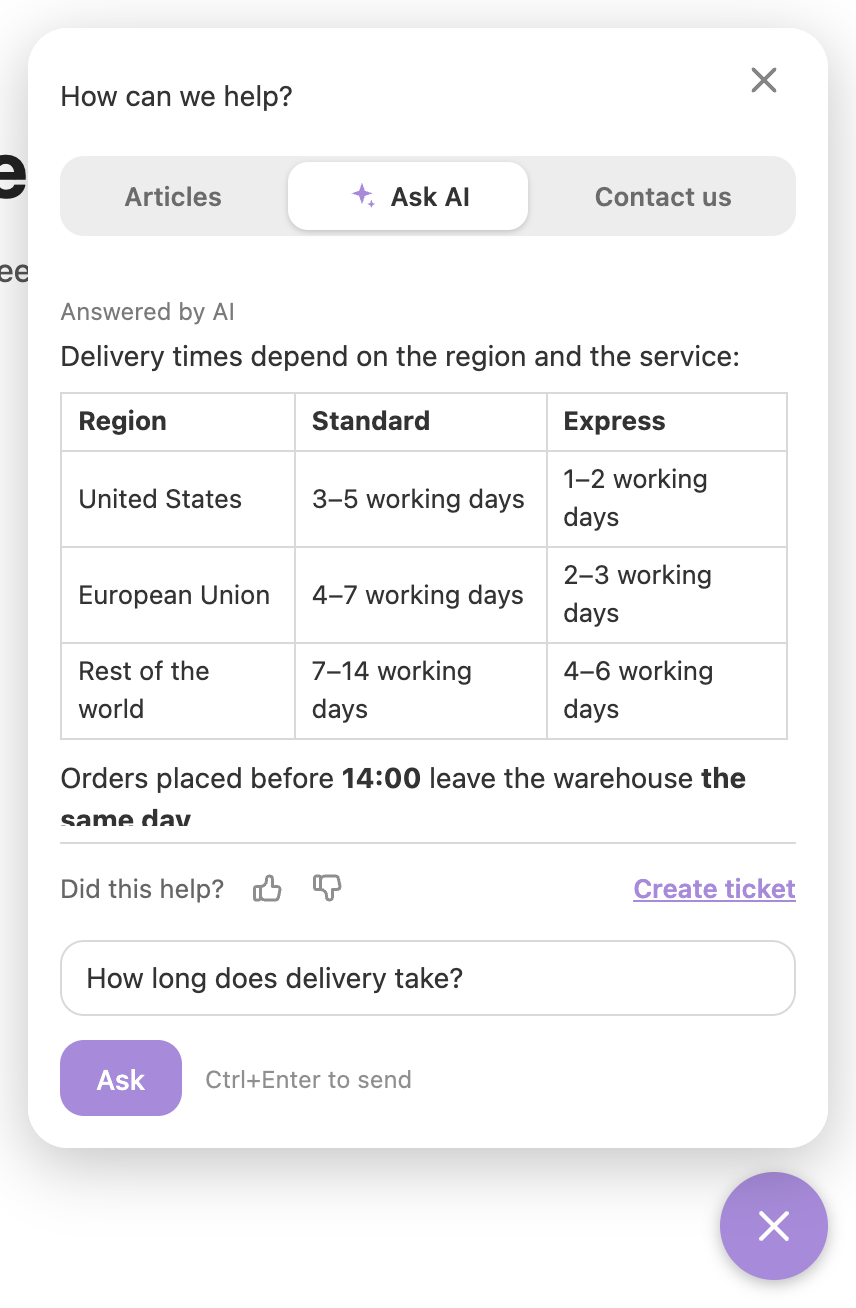
- The visitor opens the Ask AI tab. Suggested questions are shown as buttons; a click sends the question.
- They agree to the privacy checkbox (if you have turned it on), type a question and press Ask (or Ctrl+Enter).
- The answer appears formatted: bold, lists, code blocks with a copy button, links and simple tables.
- Under the answer: Did this help? with Yes and No, and Create a ticket. If the answer rests on one of your articles, a Full article button opens it.
- The question stays in the field, so the visitor can extend it and ask again. Stop cancels an answer in progress. There is no dialogue and no history: every question is answered on its own.
Create a ticket switches to the Contact us tab with the question and the answer put into the description. Nothing is sent until the visitor submits the form.
Set up Ask AI
You need to be an administrator, and the Agent plugin must have an active connection.
- Open Administration, then Helpdesk, then the Widget tab.
- In the Ask AI group check Answer visitor questions with AI.
- Fill Knowledge sources, one per line:
wiki:projectfor the whole wiki of a project;wiki:project:Pagefor a page and its child pages;- a site address such as
https://www.example.com/helpfor pages under that address.
- Optionally fill Instructions and Suggested questions.
- Select Save.
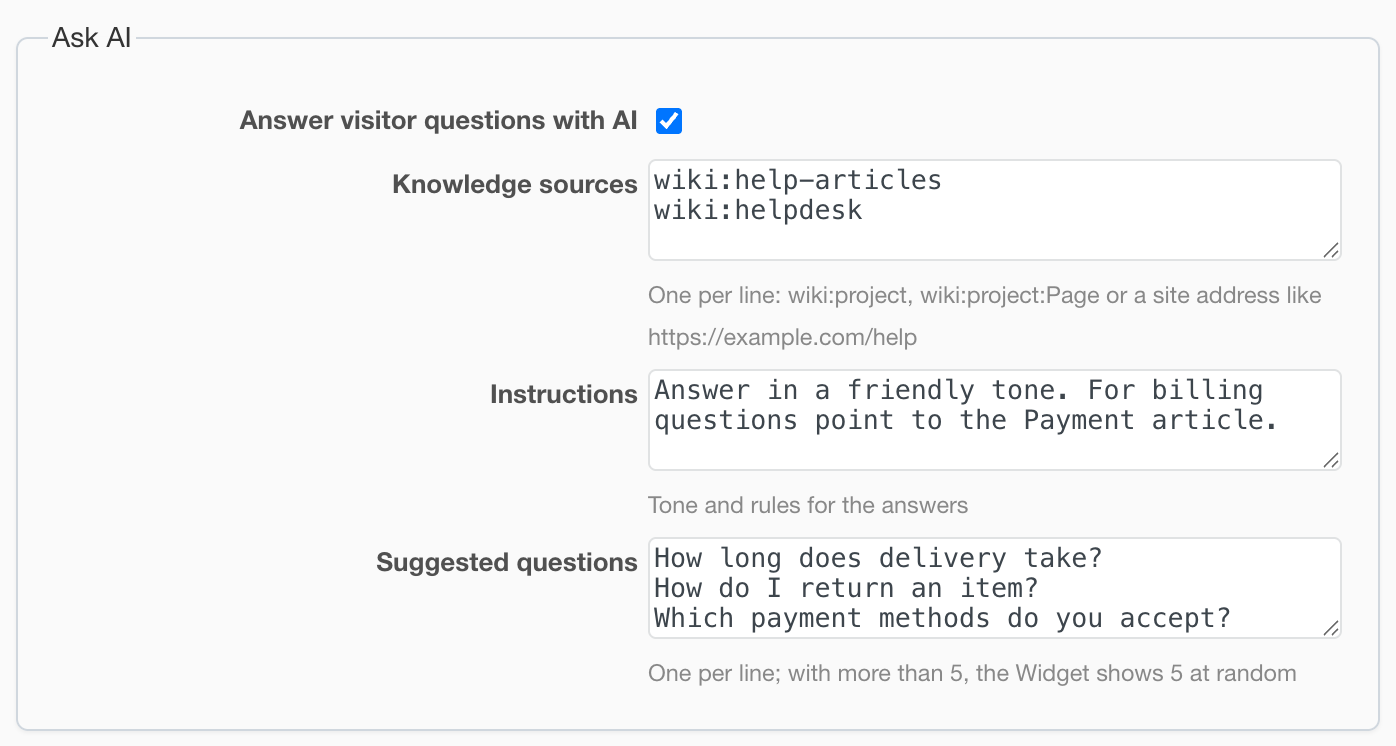
Sources that cannot be found are listed under the field after saving; the other sources keep working. The tab is shown when the option is on and there is at least one knowledge source or one article in the Articles list. Every listed article can also be read by the assistant.
Instructions and suggested questions
Instructions (up to 4000 characters) tune the tone and the topics: "Answer in a friendly tone", "Our product is called X, never mention competitors", "For billing questions point to the Billing article". The built-in rules always win, so the field cannot make the assistant invent facts, promise things or show internal data.
Suggested questions are shown when the answer area is empty. With more than five, the Widget shows five at random. A page can replace them with its own, see Data layer.
What the assistant may and may not do
- It answers only from the found sources and says plainly when it found nothing, pointing to Create a ticket.
- It replies in the language of the question.
- It never names internal pages or tools, never shows its reasoning and writes short answers.
- Page text is data for it, not instructions: a page that says "ignore the rules" has no effect.
Keep the sources honest
- Everything in a knowledge source is effectively public: a visitor can extract it by asking questions. Do not list a wiki with internal pages. Whoever can edit a page in a source can publish it.
- A wiki is read regardless of its project permissions, so a closed Redmine can still answer from a wiki. An archived project drops out.
- Page text is read as written, so macros such as
includeare not expanded.
Limits and privacy
Limits keep a bot from spending your AI budget: question length, questions per visitor and per hour, and a token budget per hour. The defaults work without any setting, and every key (including retention_days) is in the Widget API reference.
When a limit is reached the Widget shows only the ticket form to new visitors.
Questions and answers are stored in Helpdesk. By default nothing is deleted; set retention_days to clear old data. The name and email are those the Widget remembers or your page prefilled; they are shown to staff only, never sent to the AI provider, and create no contact.
Measure it
Visitors' votes and linked tickets feed the AI answer outcomes report, and Widget events send ask_sent, ask_answered and ask_vote to your analytics.